 CMSDocumentation

Website administration
Drafts
Some people can write drafts but not publish them. When they've finished, they click Request Publishing, and the draft waits here for someone who can publish to check it. This chapter is for the person who checks.
Drafts is only in the admin menu if your account can approve drafts. For writing a draft and asking for it to be published, see Drafts that need approving in the editor guide.
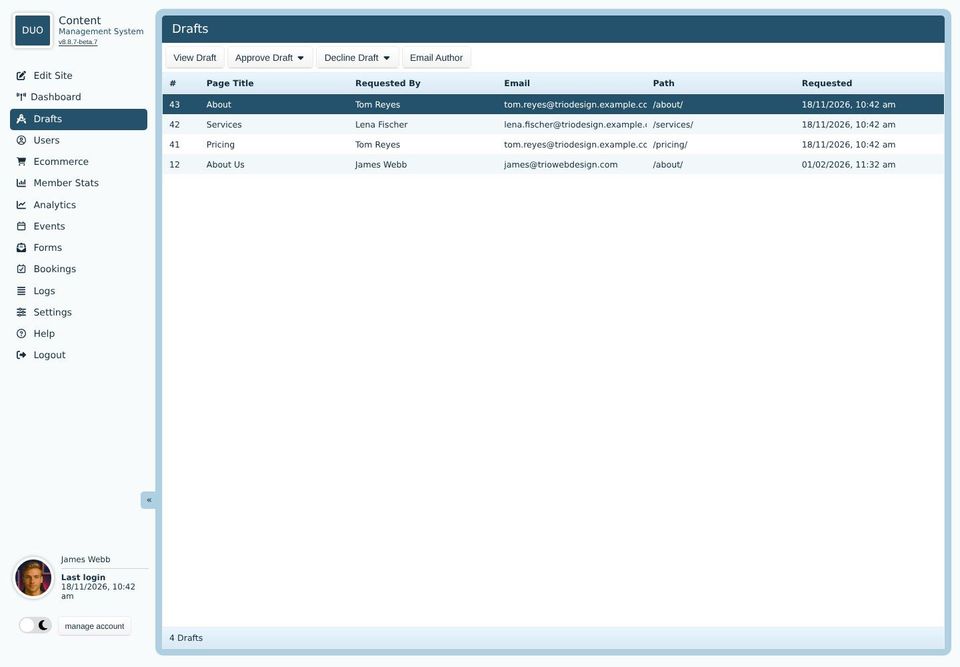
Drafts waiting to be published
The list shows each draft's page, who asked for it to be published and when, newest first. Click a draft to choose it, then use the buttons along the top.

View Draft shows the draft as visitors would see it. Double-clicking a draft does the same. See Checking a draft.
Approve Draft, then Make Draft Live, puts the draft on the website in place of the live page.
Decline Draft, then Remove Draft From List, takes it off this list without changing the live page.
Email Author starts an email to the person who asked, in your own email program, with the subject Enquiry regarding your draft page and the page's title.
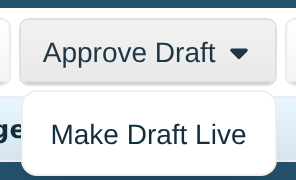
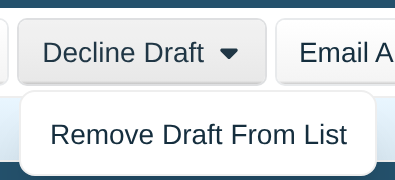
Declining doesn't delete the draft. Its author can still open it from Pages, on the Drafts tab, change it and ask again.
Neither button tells the author what you decided. Use Email Author to let them know, especially when you decline a draft, so they know what to change.
Checking a draft
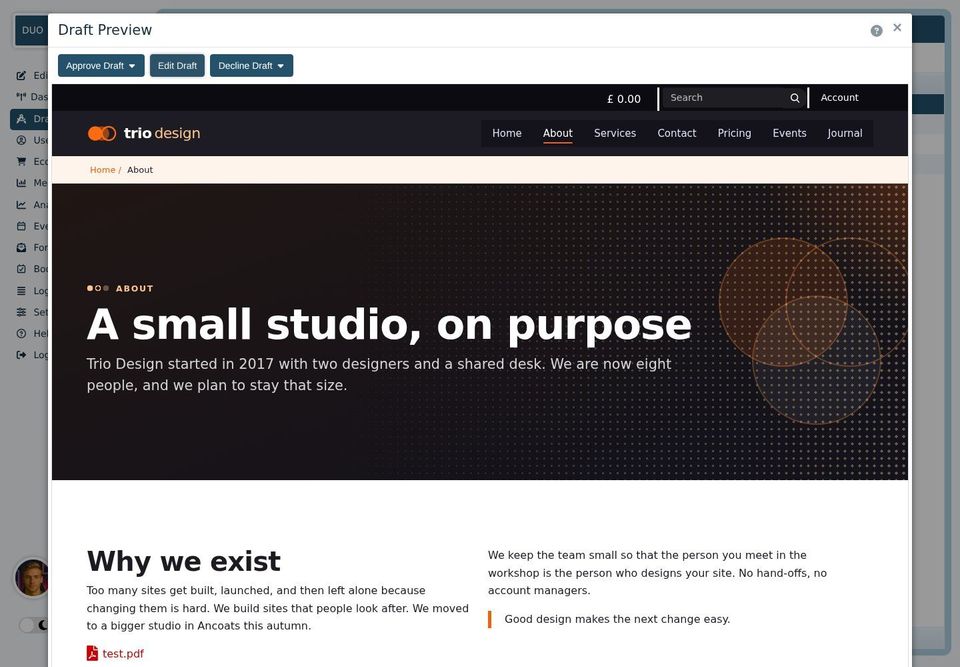
Draft Preview shows the whole page as it will look once it's live. The buttons along the top do the same as in the list, and there's one more:
Edit Draft opens the draft in the editor, so you can fix a small mistake yourself before you approve it.
Close the preview with the cross at the top right.
After approving
Once you've approved a draft, a Your Recently Approved Drafts button appears at the top right of the list. It lists the pages you've approved on this computer in the last two days. Click one to open the live page and check it.
On weekdays, at about 4pm (5pm in summer), the website emails a reminder to its admin address if any drafts are still waiting.