 CMSDocumentation

Website administration
Forms
Forms keeps a copy of every message people send through the forms on your website, such as enquiries, quote requests and sign-ups. Each one is also emailed to you, so this is the place to look if an email goes astray, or to see them all together.
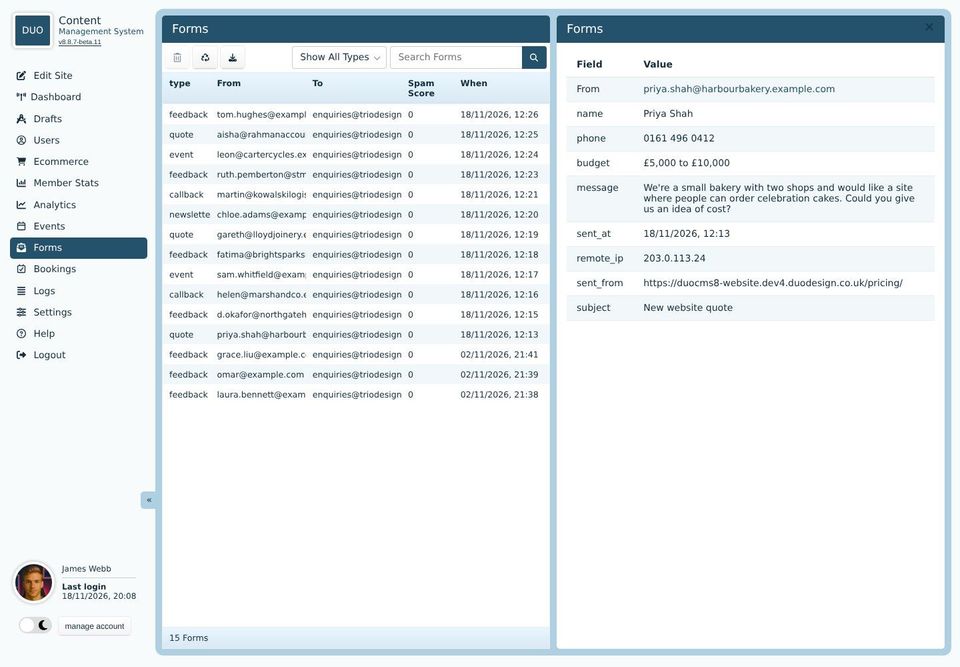
The list
The newest messages are at the top. Each row shows:
type: the Form Type set on the form when it was added to the page, such as "quote" or "feedback". See Media elements.
From: the email address the person typed.
To: where the email copy went.
Spam Score: how much it looked like spam (see below).
When it was sent.
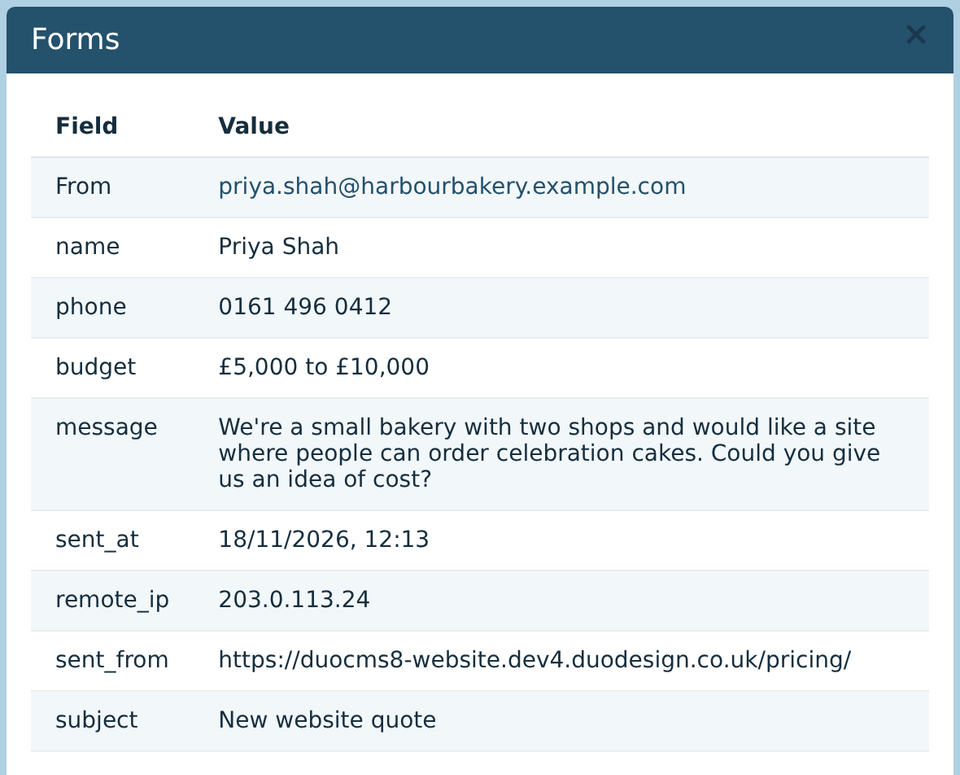
Click a message to read it. From is the sender's email address. Next to the boxes from the form, you'll also see:
sent_at: when it was sent.
remote_ip: the IP address it came from. It helps if you need to block someone (see Logs).
sent_from: the page the form was on.
subject: the form's email subject.
If the person was signed in, their name and username are added too. The cross at the top right closes the message.
The toolbar

Delete (the bin) deletes the message you've clicked on, after asking you to check.
Recently Deleted lists the messages deleted in the last week, so you can put one back. See below.
Download saves the messages in the list as a spreadsheet file (CSV), with a column for each box on the form. Choose a type first, so the columns match.
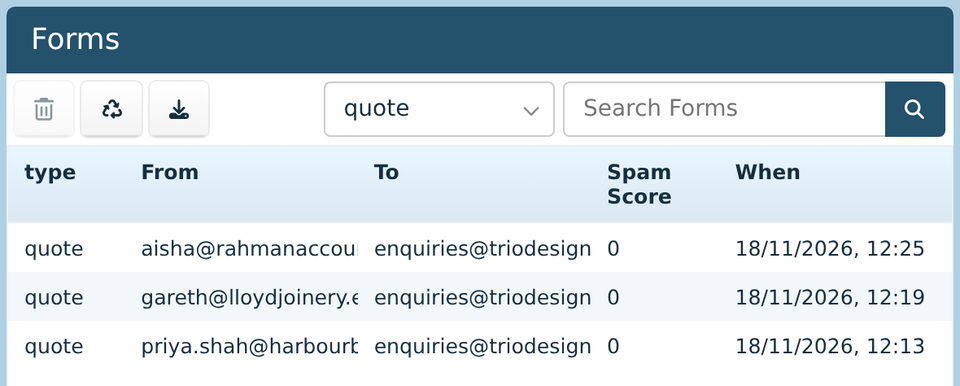
Show All Types: choose a type to list only those messages, such as all the quote requests. The search box next to it finds messages by any of the words in the list.
Deleting and restoring messages
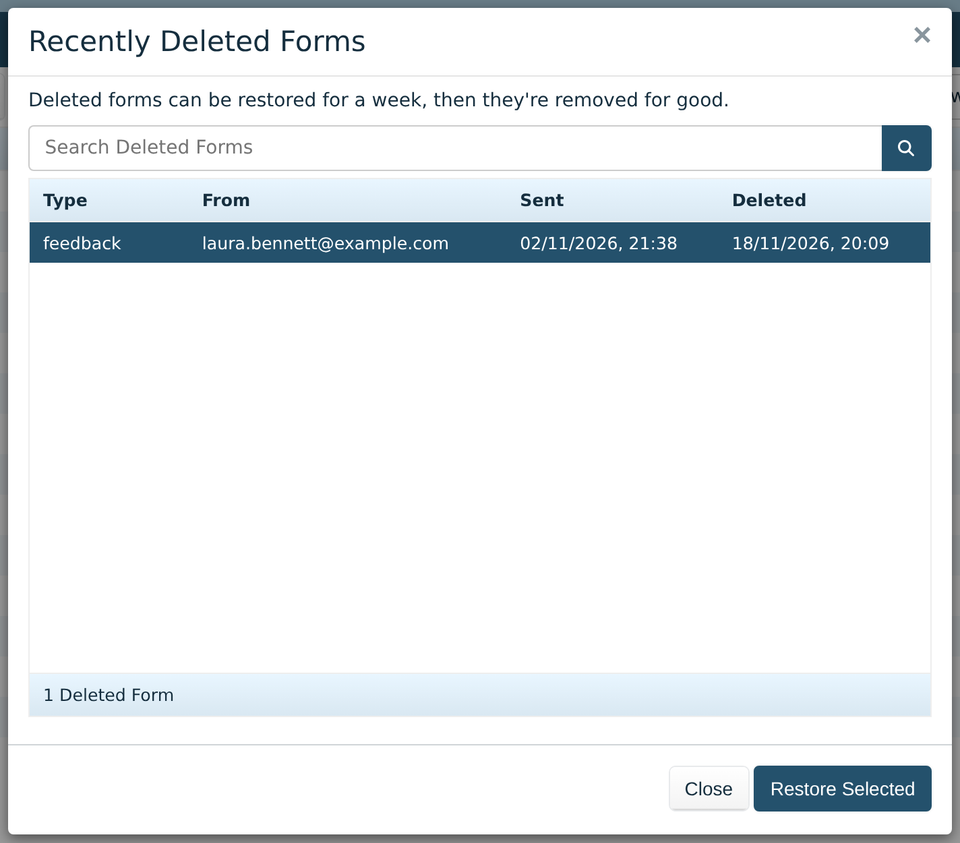
To delete a message, click it in the list, click the bin, then click to confirm. Spam that got through, and messages you've dealt with, can go.
A deleted message can be put back for a week. Click Recently Deleted, click the message, or hold Shift or Ctrl to choose several, then click Restore Selected. After a week, deleted messages are removed for good.
Deleting a message here doesn't touch the email copy already sent to you.
Spam
Every message gets a spam score as it arrives. Points are added when:
the form was filled in faster than a person could type it,
a box hidden from people, but not from robots, was filled in,
the email address isn't a real-looking one,
the message has links in it (a point for each),
the same IP address sent spam recently.
A message that scores more than your spam threshold is turned away. It isn't emailed or kept, and the sender sees an error. Each IP address can also only send so many forms a minute and an hour. You'll find the threshold and these limits under Feedback Forms in Email Settings.
If real people tell you their message wouldn't send, the threshold may be too strict. If spam gets through, lower it. Your website can also use Google reCAPTCHA (see Integrations).
Where messages are emailed
Messages go to the Default Email in Email Settings, unless the form was set to send to one of the Alternative Recipient Emails listed there. If Enable Feedback Form Auto Form Response is ticked there too, the sender also gets a short thank-you email.