 CMSDocumentation

Website administration
Bookings
Bookings is where you look after the rooms, equipment and anything else people can book through your website. The CMS calls these assets. Each one has its own calendar, opening times and prices.
People book on your website, from a page with a Booking element on it (see Media elements), and pay through the shop's checkout. You can also add bookings here yourself, for example when someone phones.
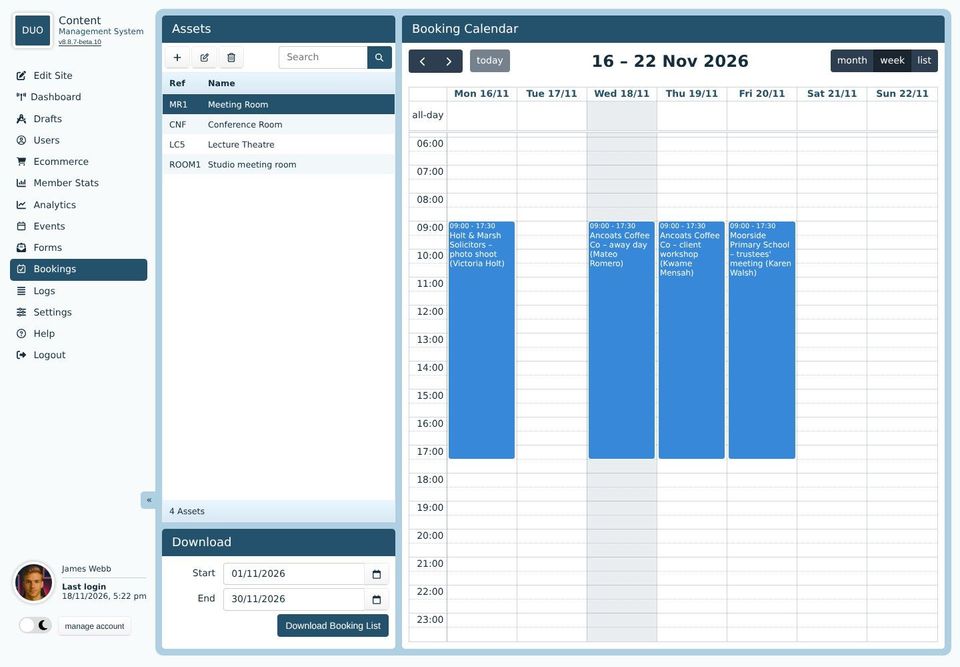
Assets
The Assets list, top left, shows everything that can be booked. Click one to show its bookings on the calendar. The buttons above the list add (+), change and delete assets.
The calendar

The arrows move back and forward.
today goes back to this week.
month shows a whole month,
week shows one week, hour by hour, and
list shows the week's bookings as a list.
Each booking shows its times and notes. In the week view:
To add a booking, drag down the calendar from the start time to the end time. The booking's window opens with those times filled in.
To move a booking, drag it to another time or day. To make it longer or shorter, drag its bottom edge. The change is saved straight away.
To change a booking, double-click it.
To delete bookings, click one, or hold Shift and click several, then press the Delete or Backspace key. You're asked to confirm first.
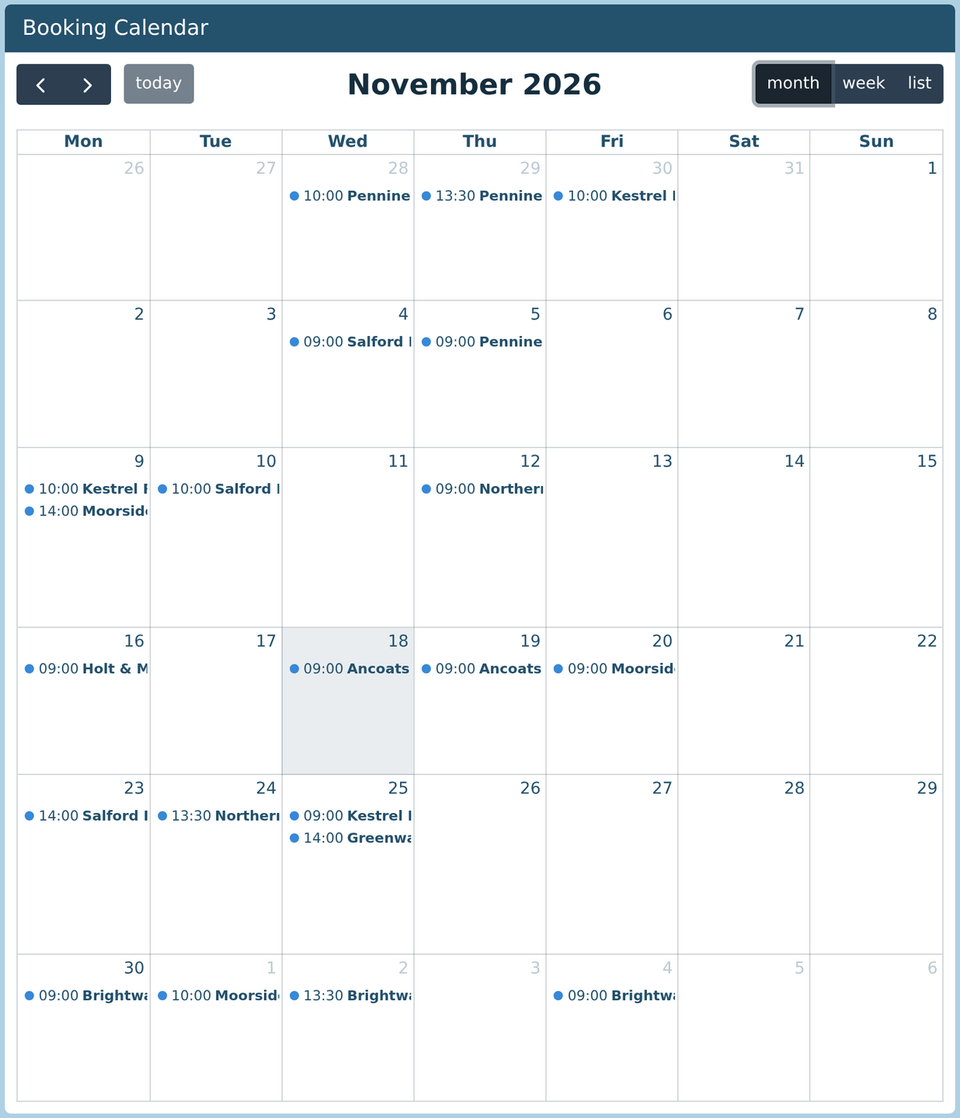
A booking
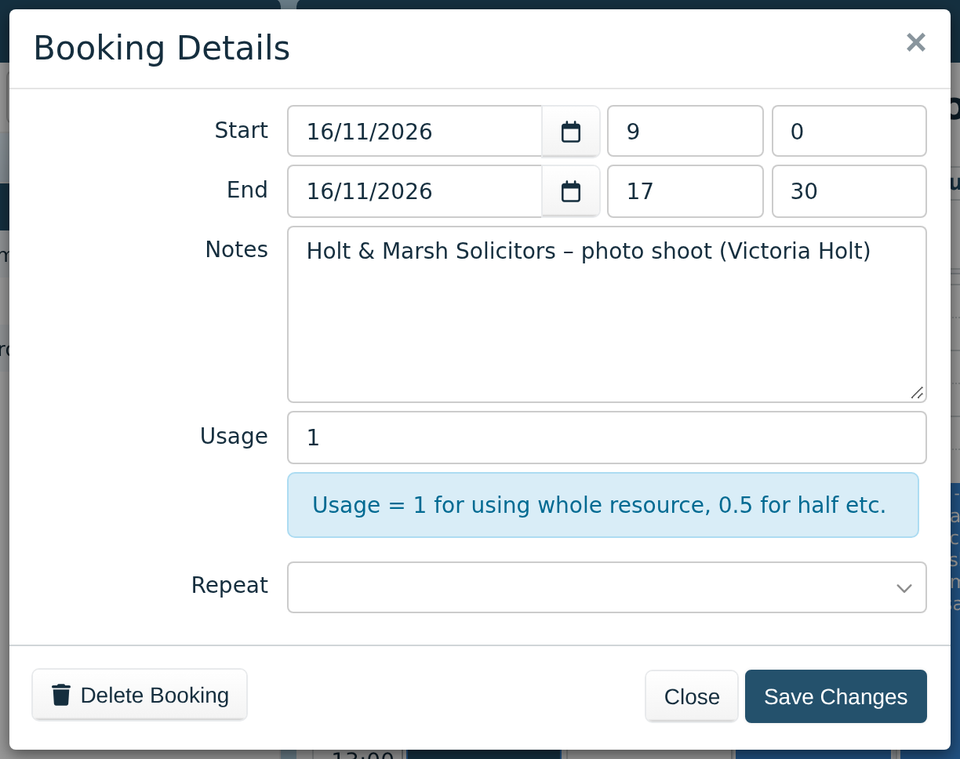
Start and End: the date, then the hour and minutes, using the 24-hour clock.
Notes show on the calendar. Put who it's for and what it's for, so the calendar makes sense at a glance.
Usage is how much of the asset the booking takes: 1 for all of it, 0.5 for half. Two half bookings can share the same time.
Repeat makes copies of the booking every day, week or month, between the Repeat From and Repeat To dates you choose. It isn't offered on a booking that's already one of a repeated set.
View Transaction appears when someone booked and paid on the website. It opens their order. See Transactions.
When you delete one booking from a repeated set, you can delete just that one, or click Delete All to remove the repeats after it as well.
Setting up an asset
Click + above the Assets list to add one, or select one and click the pencil to change it. The window has three tabs.
Details
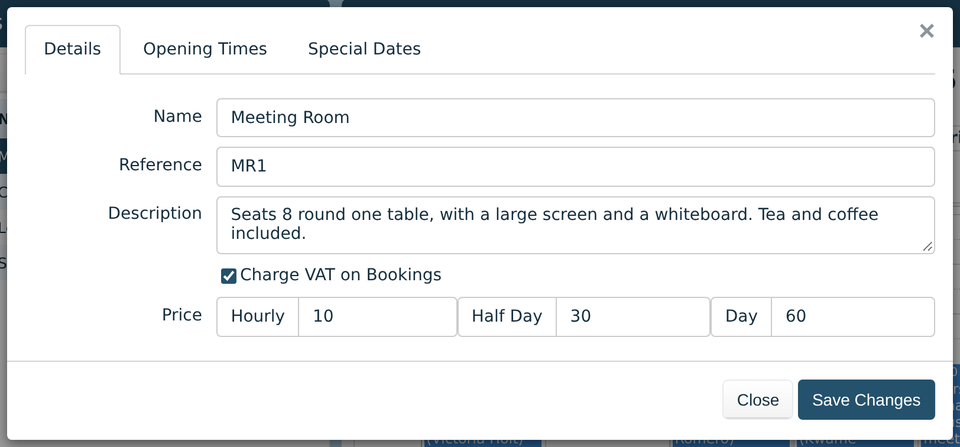
Name and Reference, a short code for your own use. Both are needed.
Description: a few words about it.
Charge VAT on Bookings adds VAT to the price at the checkout.
Price: an hourly price, and prices for a half day and a whole day. A booking that matches one of the half or whole day times in your booking settings is charged that price. Anything else is charged by the hour, counting part hours, so 9:00 to 17:30 is 8½ hours.
Opening Times
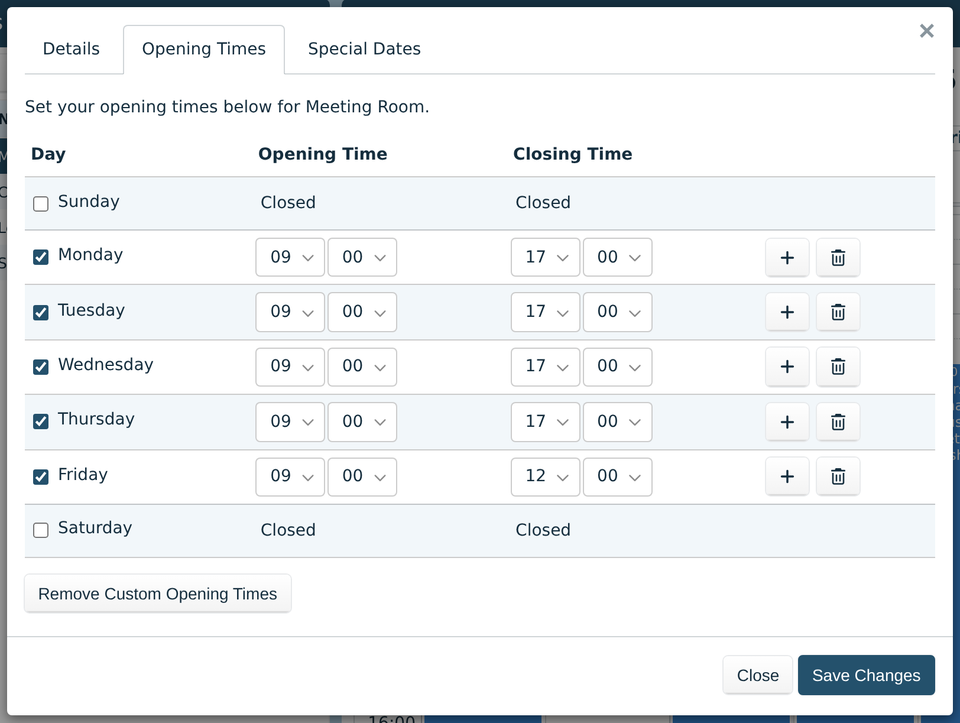
An asset uses the opening times in your booking settings, unless you click Use Custom Times to give it its own. Tick the days it's open and choose the times. The + button adds a second set of times to a day, for example to close over lunch. Remove Custom Opening Times goes back to the standard ones.
Special Dates
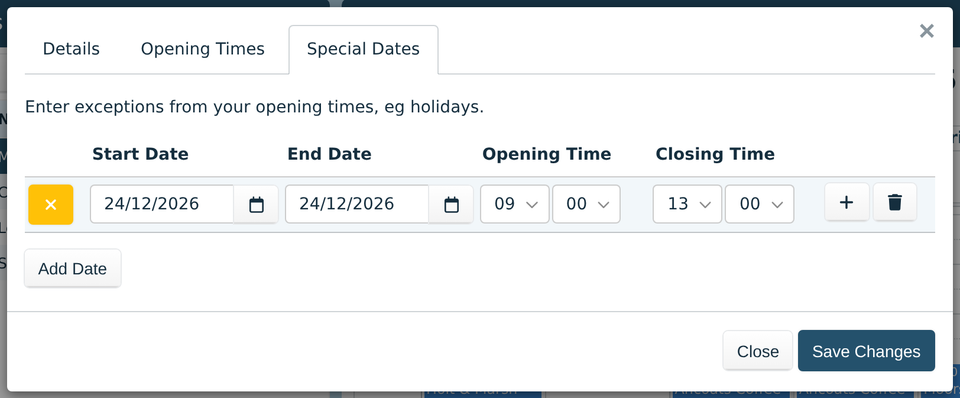
Special dates are exceptions to the opening times, such as holidays or a day you close early. Click Add Date, choose the dates and set the times. Remove all the times to close for the whole day. The yellow button deletes the date.
Download Booking List
The Download panel, under the Assets list, makes a printable list of the selected asset's bookings between two dates. It's handy to pin up by the door of a room.