 CMSDocumentation

Website administration
Settings
Settings holds the details that apply to your whole website: your organisation's name and address, where messages from forms go, the services your website connects to, and so on. Most are set up once, when your website is built, and rarely change.
Changes save as soon as you click out of a box. There's no Save button.
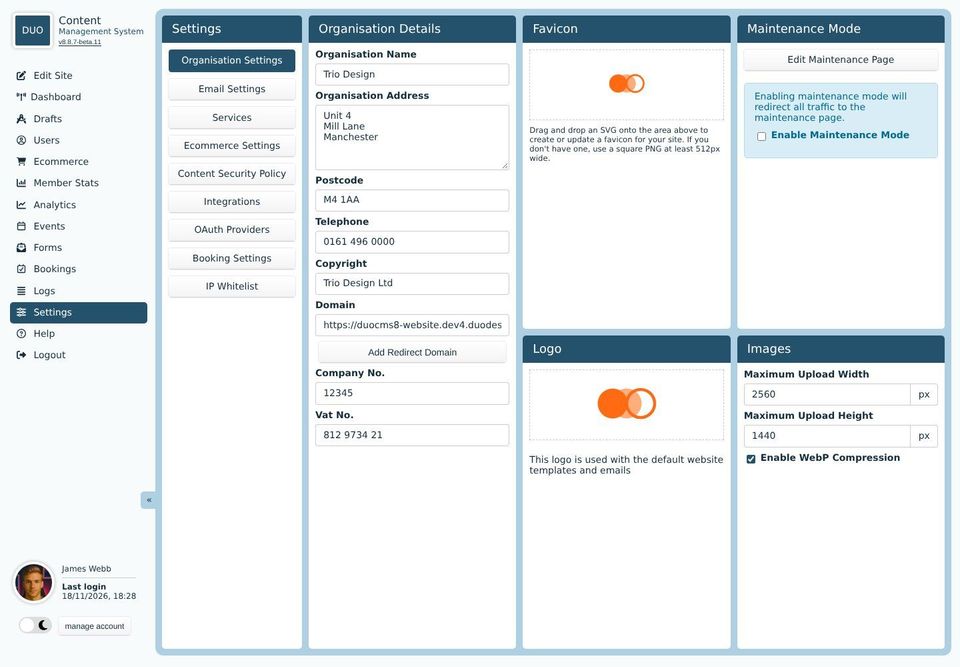
The tabs
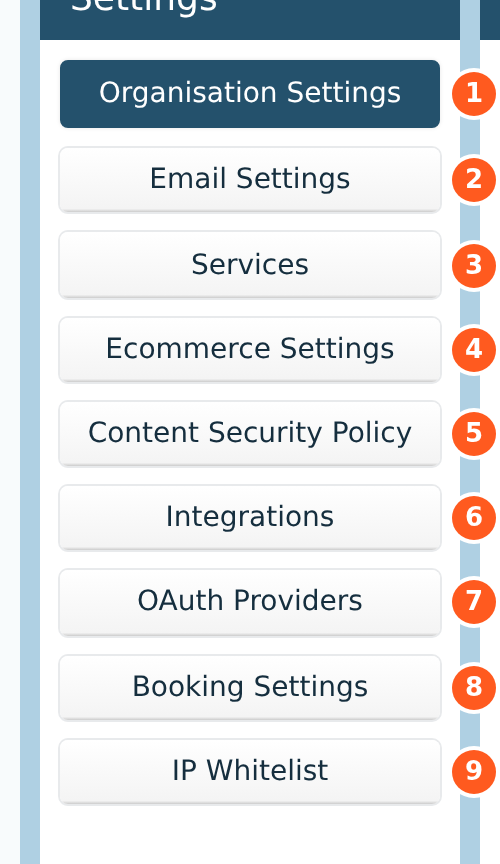
Organisation Settings: this page.
Email Settings: where form messages go, spam limits, the thank-you email for forms, and the service that sends your emails.
Services: social media accounts, Google Analytics and robots.txt.
Ecommerce Settings: VAT, currencies, stock, checkout options and card payments.
Content Security Policy: which other websites your pages may load things from.
Integrations: Dropbox, Google, reCAPTCHA and calendars.
OAuth Providers: signing in with a Google, Microsoft or GitHub account.
Booking Settings: standard opening hours and half and full day times.
IP Whitelist: limiting the editor to your own offices.
Some tabs only appear if your website uses that part of the CMS. Developers also see Enabled Features, which switches parts of the CMS on and off, and API Keys. These are described on the developers' pages. If you'd like a feature switched on, ask whoever looks after your website.
Organisation Details
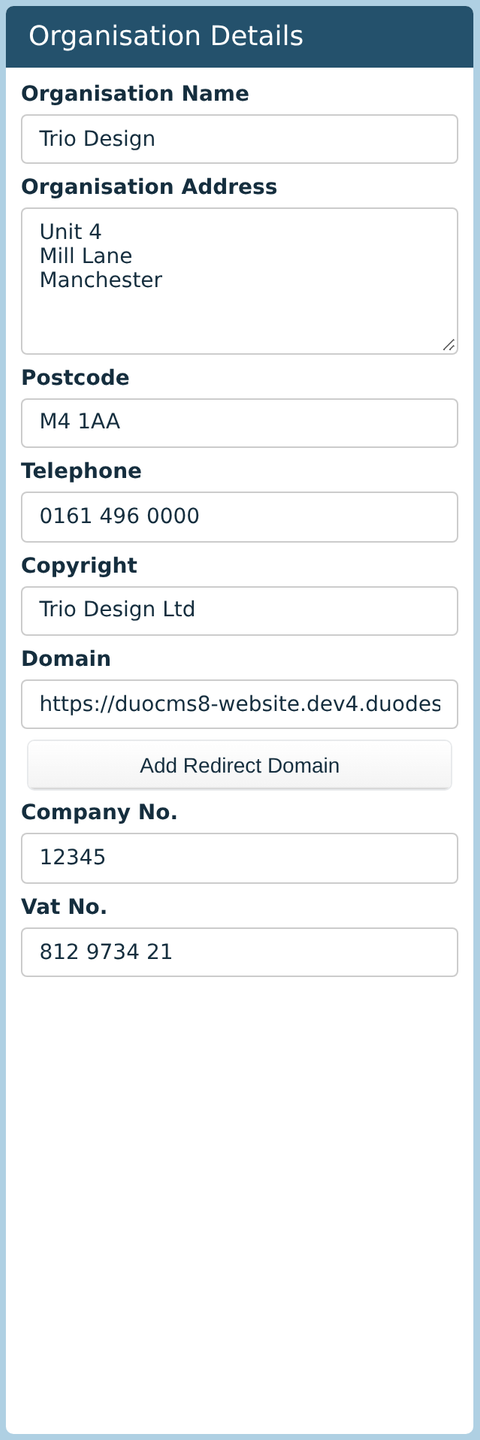
Your organisation's name, address, postcode, telephone number, copyright line, company number and VAT number. Your website's templates and emails use them, for example in the footer, on invoices, and in the thank-you email for forms.
Domain is your website's address. If people can also reach it at other addresses, such as an old one or one without "www", Add Redirect Domain sends them to the main one.
Favicon and Logo
The favicon is the small picture in the browser tab. Drag an SVG file onto the Favicon box to set it, or a square PNG at least 512 pixels wide. The Logo box works the same way. Your website's emails, and the standard templates, use the logo.
Images
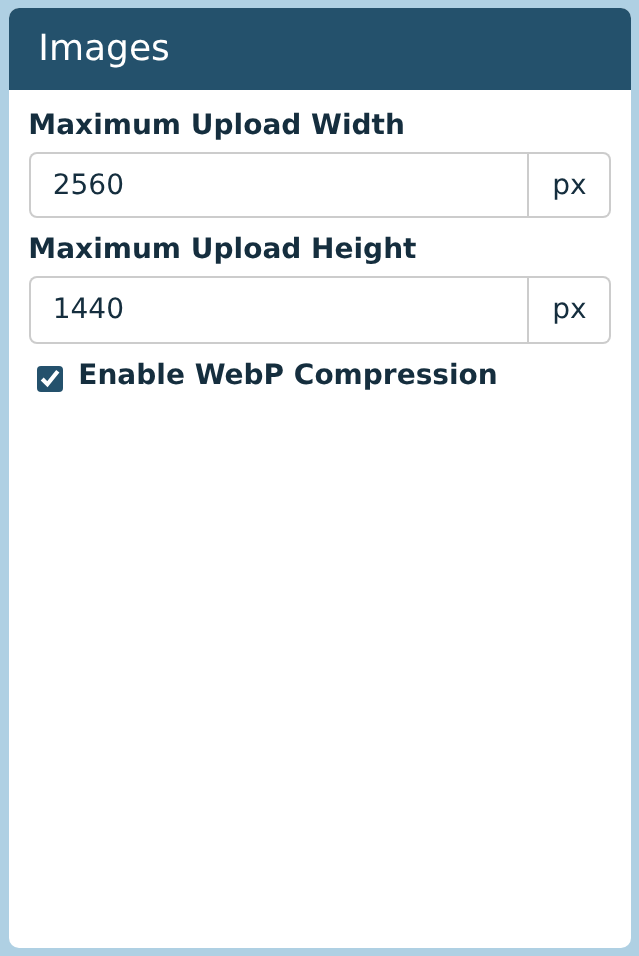
Maximum Upload Width and Maximum Upload Height: when someone uploads a picture bigger than this, it's made smaller to fit, keeping its shape. Photos straight off a phone or camera are usually far bigger than any page needs, so this keeps your website quick and saves file space. 2560 by 1440 pixels is plenty for a picture the full width of a large screen. Pictures already uploaded aren't changed.
Enable WebP Compression sends your JPEG and PNG pictures to visitors as WebP files, a newer format that's smaller and quicker to load, wherever their browser can show it. Your original pictures are kept as they are. Leave it ticked unless your developer says otherwise.
Maintenance Mode
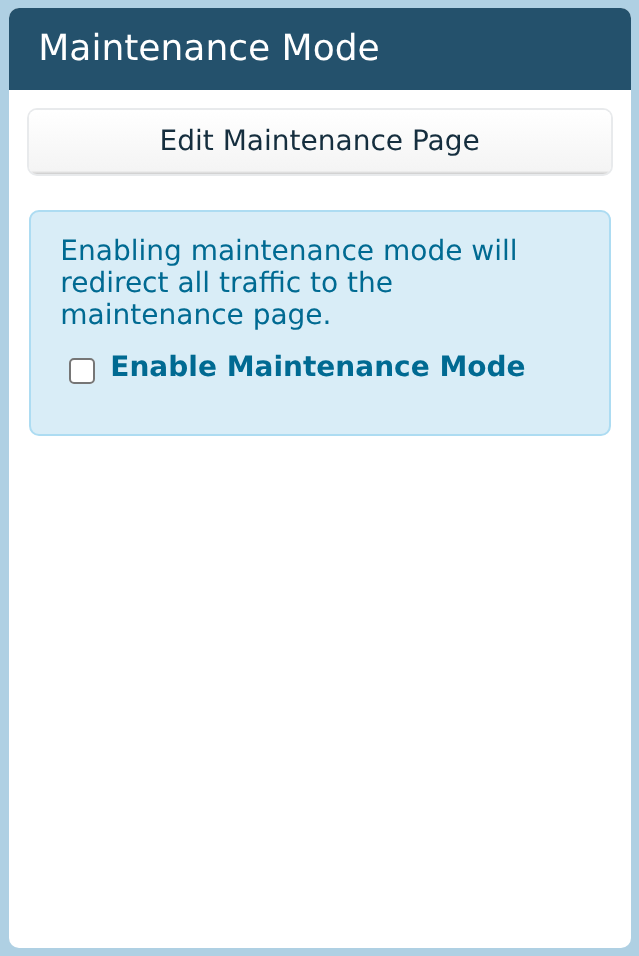
Tick Enable Maintenance Mode to show visitors a "back soon" page in place of your website, for example while you make big changes. You can still sign in and edit as usual.
Edit Maintenance Page opens that page in the editor, so you can change what it says. Remember to untick the box when you're done.