 CMSDocumentation

Website administration
Events
Events lists the dates you show on your website's calendar, such as open days, workshops and talks. Add an event here and it appears on any page with an Event Calendar on it.
To put a calendar on a page, see Media elements.
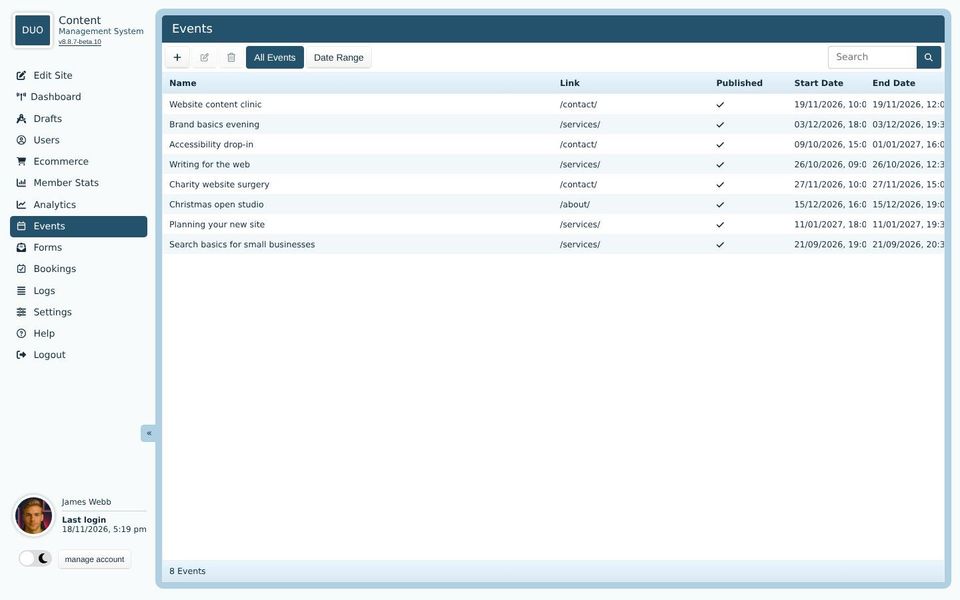
The list
Each row shows an event's name, the page it links to, whether it's published, and when it starts and ends. If an event runs on several dates, Start Date is its first and End Date its last.
Double-click an event to change it. The buttons above the list add (+), change and delete events. Search finds events by name.
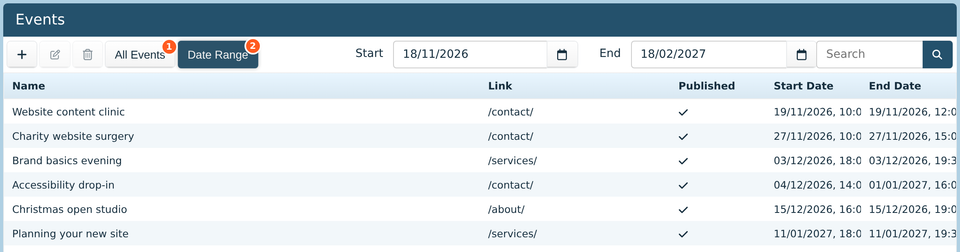
All Events lists every event, past and future. An event that repeats shows the date it starts.
Date Range lists only the events between the Start and End dates beside it, which start as today and three months from now. Start Date and End Date then show each event's first and last time within those dates, counting repeats, so it's the quickest way to see what's coming up.
Adding or changing an event
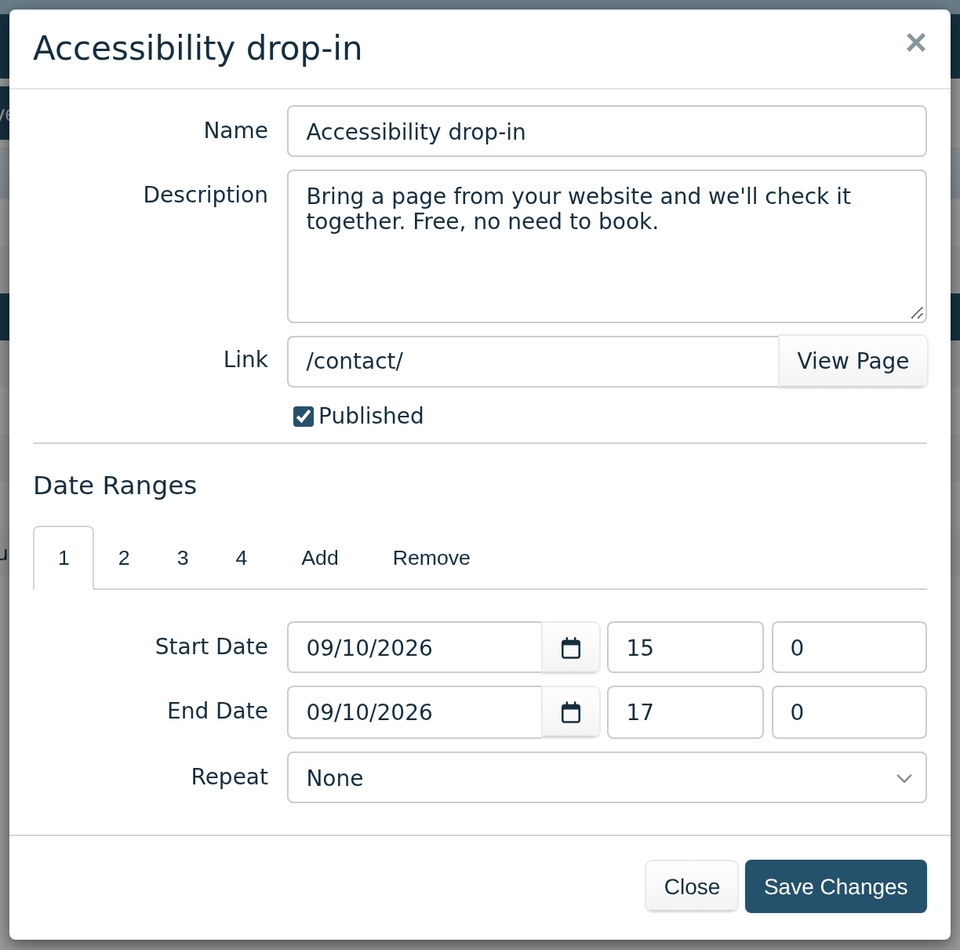
Click + to add an event, or double-click one to change it.
Name and Description show on the calendar. Keep the description to a sentence or two.
Link is the page people go to when they click the event, such as a booking page or one with more details. View Page opens it, so you can check it's right.
Published shows the event on your website. Untick it to hide an event without deleting it.
Click Save Changes when you're done.
Dates and times
Each event has one or more date ranges, shown as numbered tabs under Date Ranges. Each one has a Start Date and End Date, with the hour and minutes in the two boxes beside them, using the 24-hour clock. For an event from 3pm to 5pm, type 15 and 0, then 17 and 0.
For an event on a few different days, click Add for each date. Remove deletes the date range on the tab you're looking at.
Repeating events
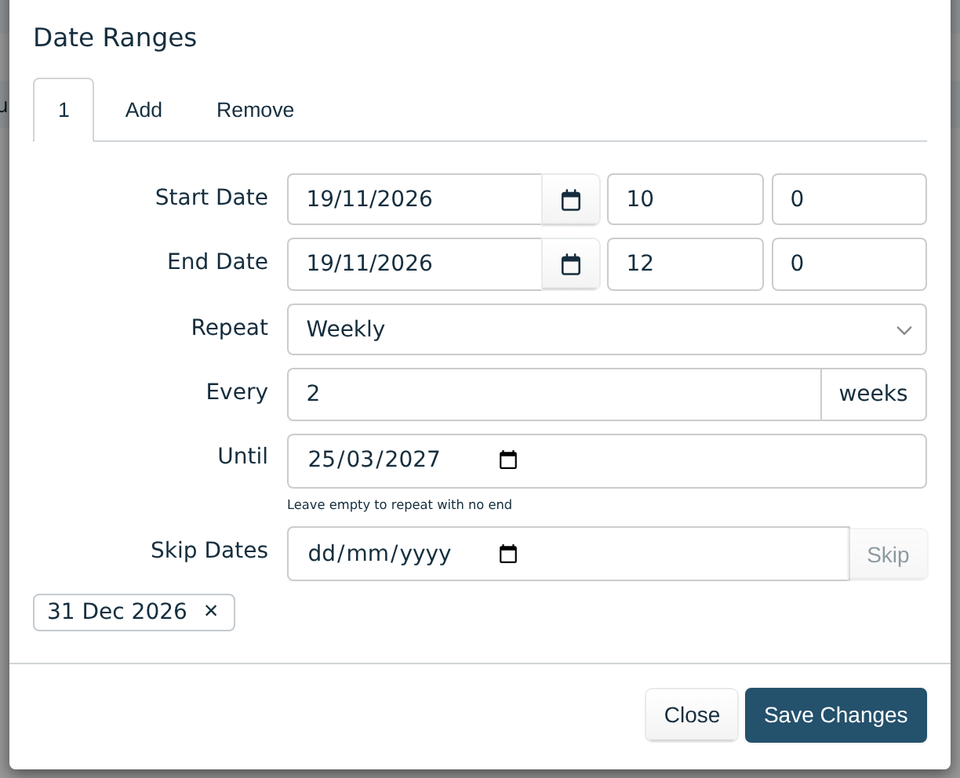
For an event that runs on a regular pattern, such as a weekly class, set its first date and time, then choose Daily, Weekly or Monthly under Repeat. Three more boxes appear:
Every: 1 for every week, 2 for every other week, and so on.
Until: the last day it can run. Leave it empty to keep repeating.
Skip Dates: days it doesn't run, such as a bank holiday. Pick the date and click Skip. Click the cross on a skipped date to put it back.
Each repeat keeps the same time and length as the first, including across the clock changes. A monthly event repeats on the same date each month, such as the 19th. For a pattern like the first Friday of each month, add each date instead.
Old events
Events stay on the list after they've happened. Delete them when you no longer need them, or untick Published if you'd like to keep a record.