 CMSDocumentation

Website administration
Logs
Logs keeps a record of what your website has been doing behind the scenes: the emails it sends, who has failed to sign in, and the errors visitors have run into. Most days you won't need it. It's where to look when someone says an email never arrived, or they can't get in.
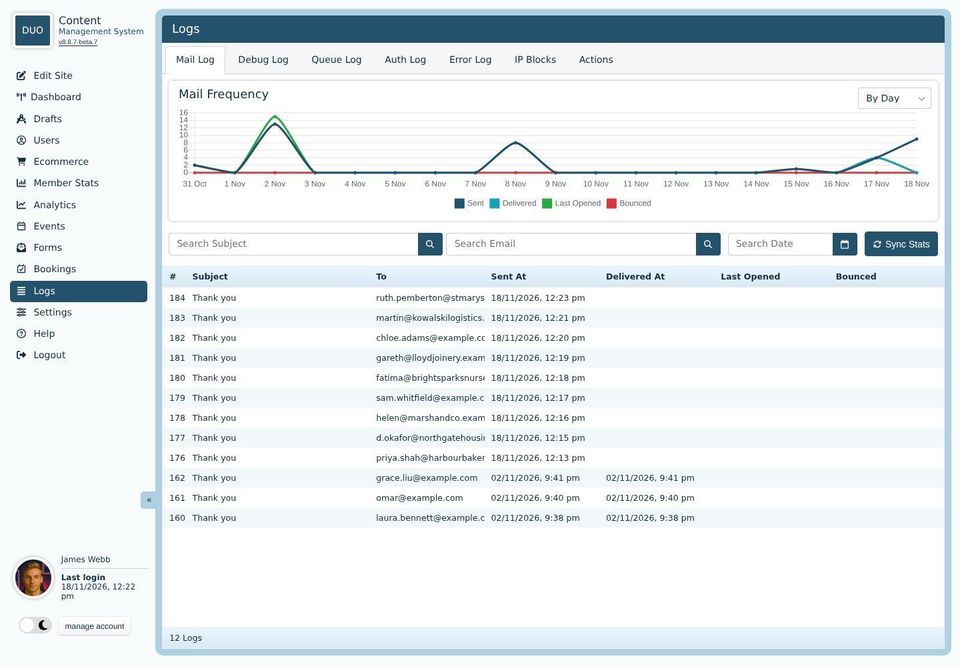

Which tabs you see depends on your account and your website. Developers also have a Validation tab, described on the developers' pages.
Each log has a graph at the top. Choose By Hour or By Day to change how it's grouped.
Mail Log
The Mail Log lists every email your website has sent: replies to forms, order receipts, password resets and so on. Each row shows the subject, who it went to and when it was sent.
Search by subject, email address or date to find one. Sync Stats asks your email service what happened to each email since, and fills in when it was delivered, when it was last opened, and whether it bounced. A bounced email didn't arrive, often because the address was mistyped.
Opened times are only a guide. Some email programs don't report when an email is opened, and some report it when they check the email for spam.
Debug Log
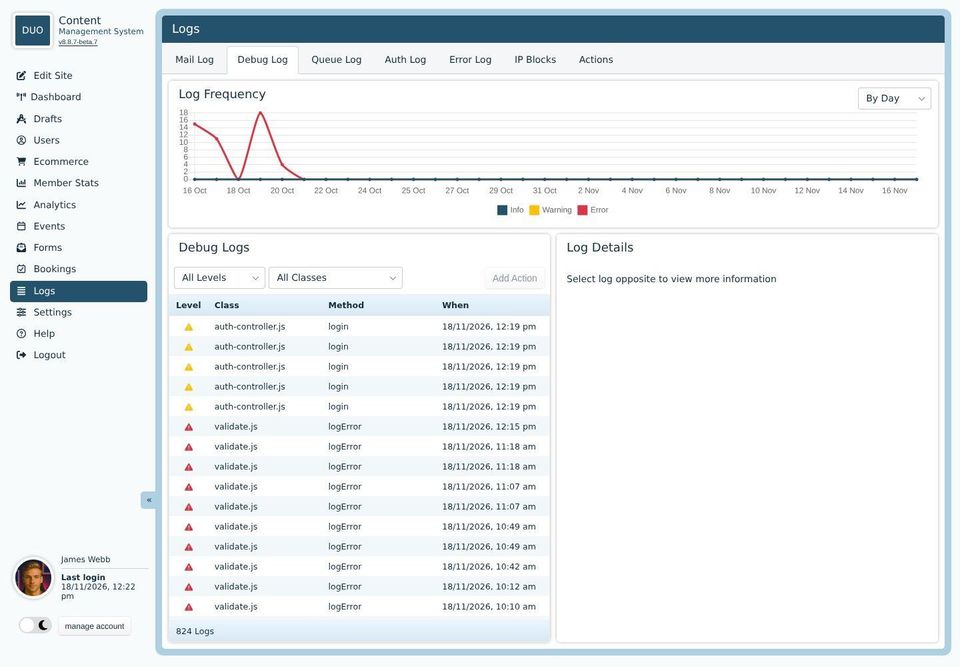
The Debug Log is the website's own notes on things that went wrong, or nearly did, for the people who look after the website's code. Each row has a level: information, a warning or an error. Click one to see the details.
If you're asked to report a problem, the details here help. Add Action sets up a rule that warns you if the same thing keeps happening (see Actions).
Queue Log
Some jobs run in the background, such as checking the whole site for links that no longer work. The Queue Log lists them, with whether they finished. Select a job that failed and click Retry to run it again, or Cancel to stop one that's waiting.
Auth Log
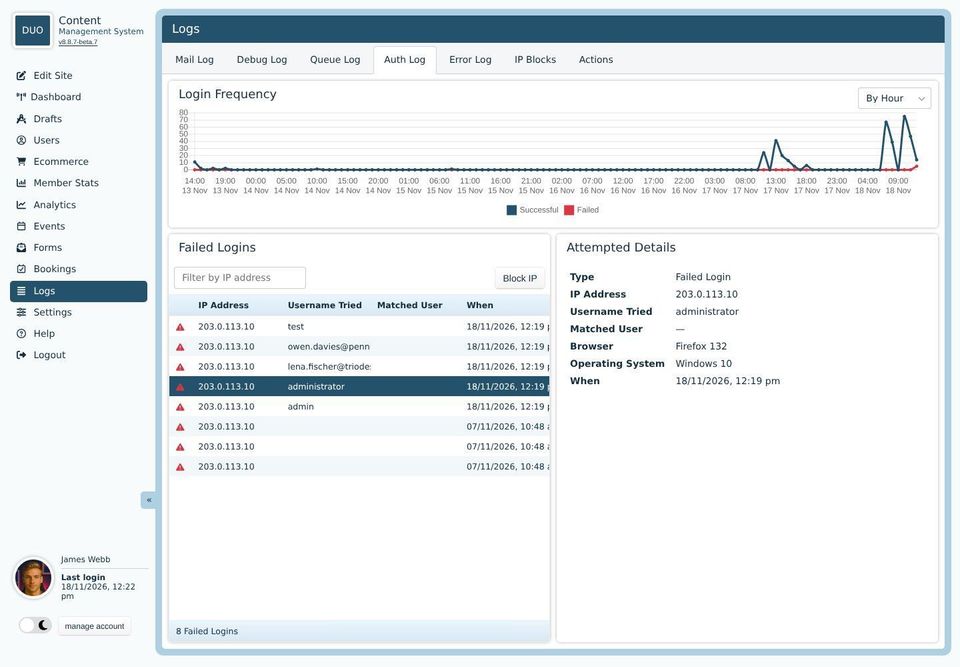
The graph shows sign-ins by hour or day, successful and failed. The list shows each failed one: the IP address it came from, the name or email address that was typed, and the account it matched, if any. Click one to see the browser and computer it came from.
A few failures from one person usually mean a forgotten password. Lots, from one IP address, trying names like "admin", mean someone is guessing. Select one and click Block IP to stop that address.
An IP address identifies an internet connection, not a person. Everyone in one office, or on one mobile network, can share the same address.
Error Log
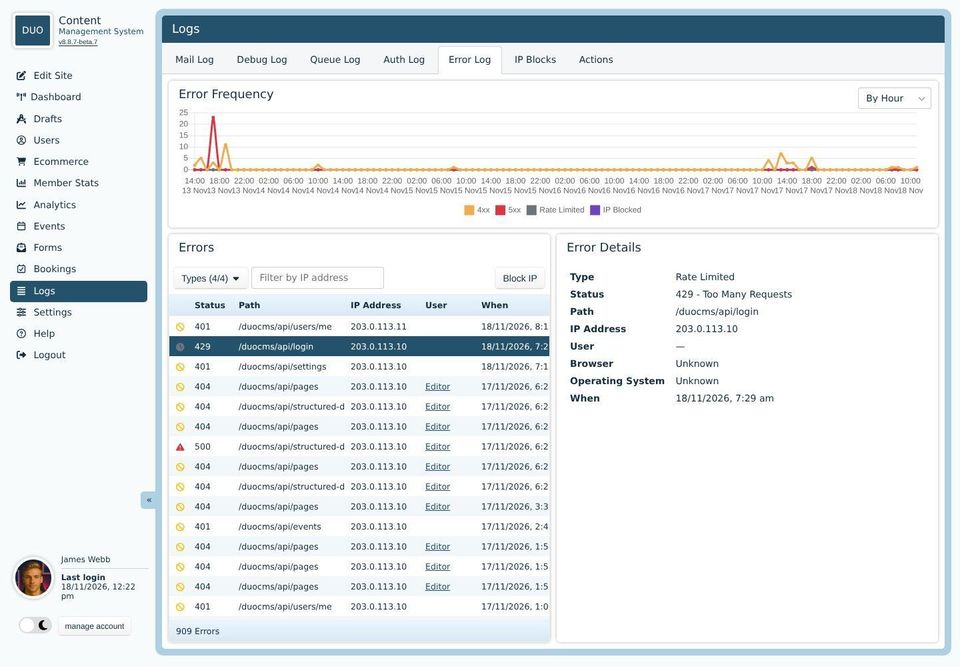
The Error Log lists the times a visitor got an error rather than the page they wanted. Types chooses which to show:
4xx: the visitor asked for something they couldn't have, such as a page that isn't there (404) or one they need to sign in for (401).
5xx: something went wrong on the website itself. A run of these is worth reporting.
Rate Limited: someone tried something too often too quickly, such as signing in, and had to wait.
IP Blocked: a visitor from an address you've blocked.
Type an IP address in the filter box to see everything from one address. Block IP blocks the selected one.
IP Blocks
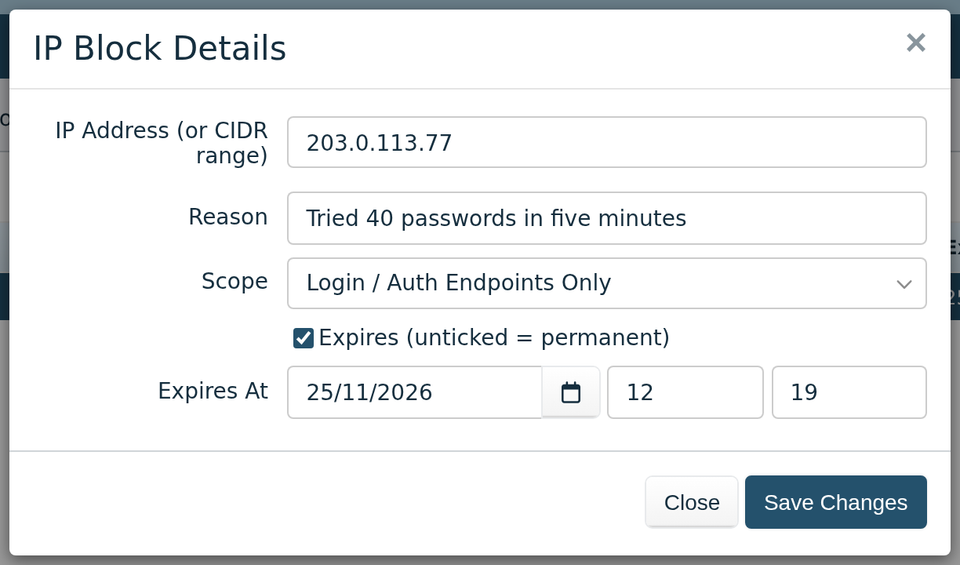
IP Blocks lists the addresses you've blocked. Click + to add one, or double-click one to change it.
IP Address: one address, or a range written the way your IT support gives it to you (such as 203.0.113.0/24).
Reason: a note for yourself.
Scope: Everywhere stops the address seeing your website at all. Login / Auth Endpoints Only just stops it signing in.
Expires: untick it to block for good. Blocks that run out are better for addresses that might be shared.
To unblock an address, select it and click the bin.
Actions
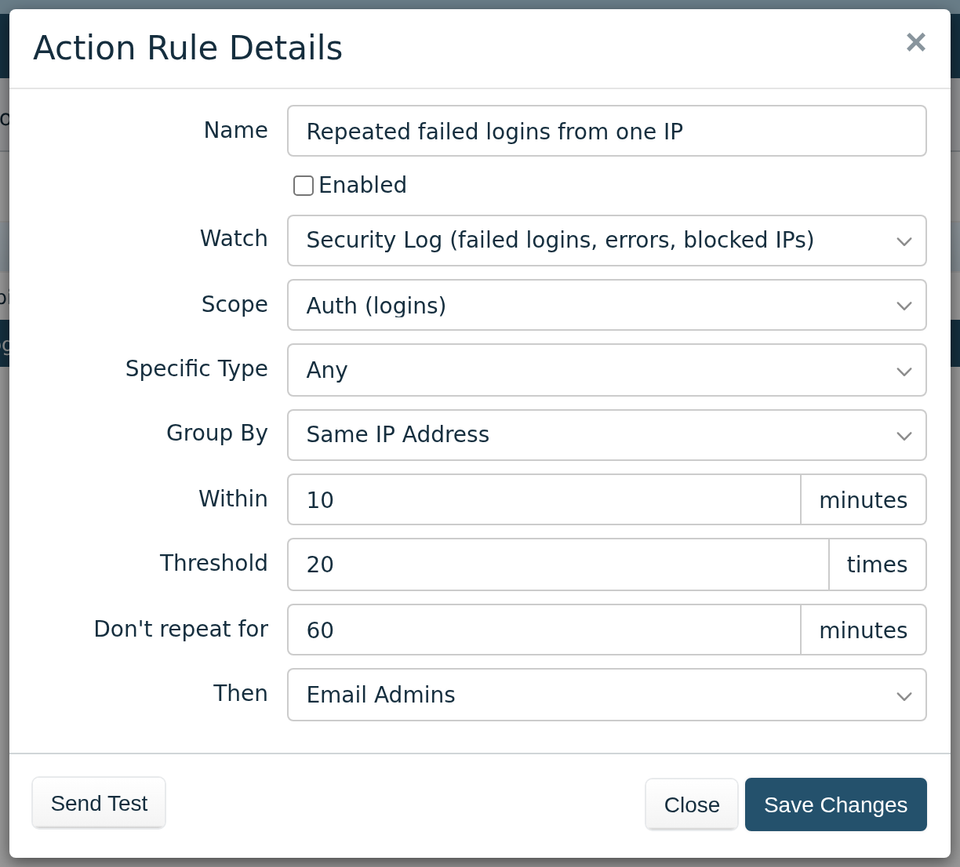
Actions are rules that watch the logs and do something when trouble builds up. Your website comes with a few, switched off. Double-click one to change it, or click + to add your own.
Watch, Scope and Specific Type: what to count, such as failed sign-ins.
Group By: count them all together, or for each IP address or account separately.
Within and Threshold: how many in how long, such as 20 in 10 minutes.
Don't repeat for: how long to wait before acting again, so you don't get a flood of emails.
Then: email your admins, email your developers, or block the IP address.
Tick Enabled to switch a rule on. Send Test sends a sample warning email, to check it reaches the right people.
Email Admins sends to the address named security under Feedback Forms in Email Settings, and Email Developers to the one named developers. If there's no address with that name, the email goes to the Default Email there instead.