 CMSDocumentation

Website administration
The dashboard
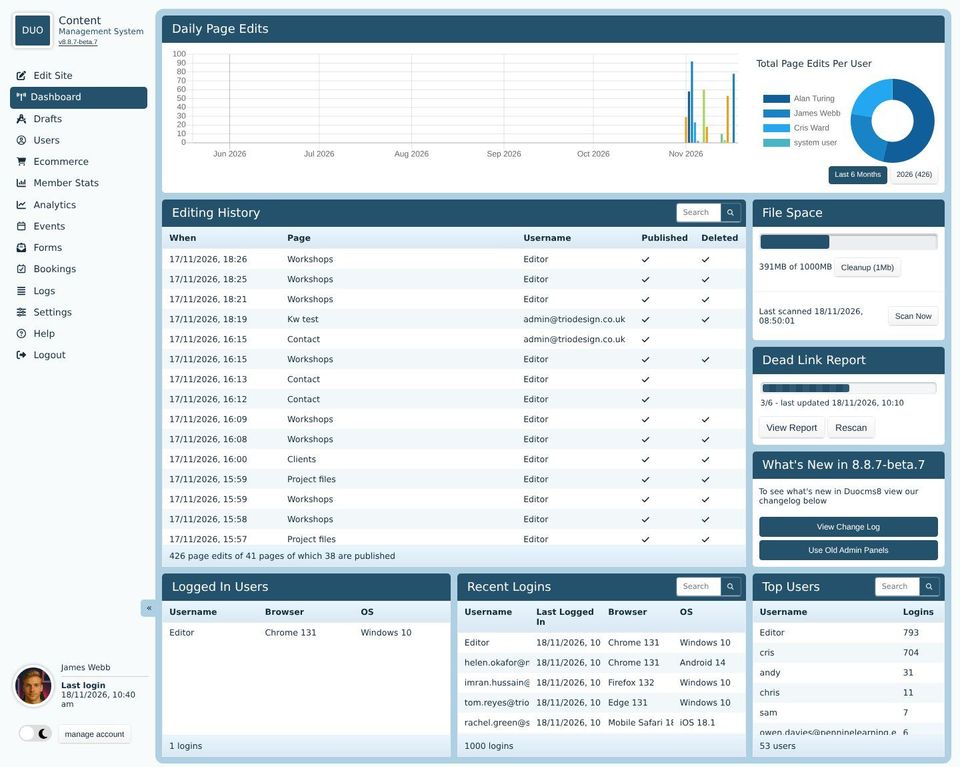
The Dashboard is the first screen you see in the admin. It shows what's been happening on your website: who has edited which pages, how much file space you're using, links that no longer work, and who has been signing in.
Daily page edits
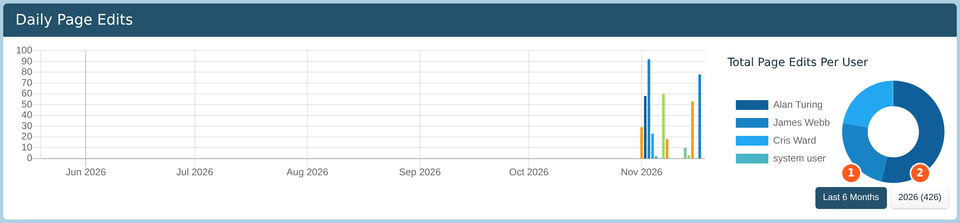
The bars show how many times pages were saved each day, with a colour for each person. The ring on the right shows each person's share of the edits.
Last 6 Months shows the past six months.
A button for each year shows that year instead. The number in brackets is how many edits there were that year.
Editing history
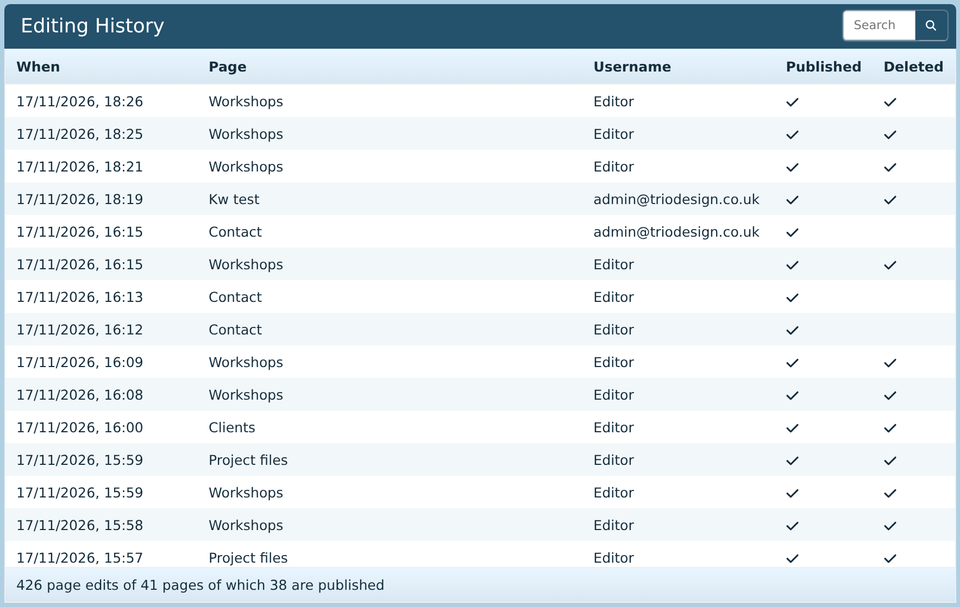
Every time someone saves a page, it's added to the top of this list, with who saved it and when. Ticks show whether the page is published, and whether it has since been deleted.
Type in the search box to find a page or a person.
Double-click a row to open that page in the editor, in a new tab.
File space
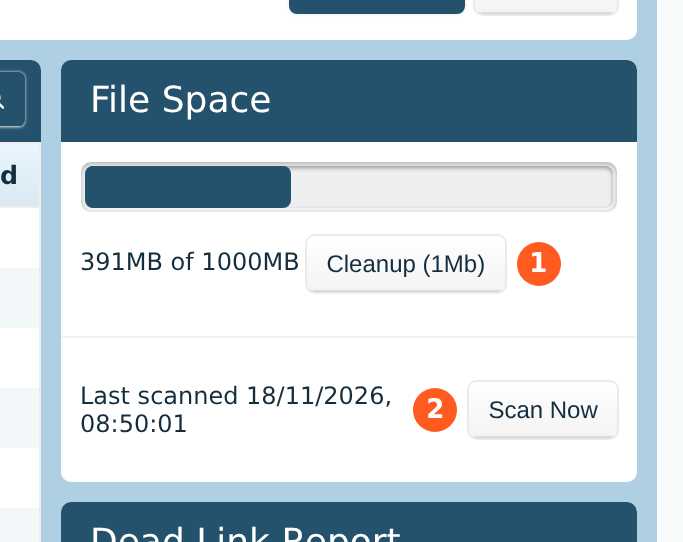
The bar shows how much of your website's file space is in use: pictures, documents, videos and so on.
Cleanup removes deleted files for good. When you delete a file, it's kept for 7 days so you can change your mind, and then removed. Cleanup removes them straight away, to free up space. The number on the button is how much space it frees. It asks you to confirm first, and it can't be undone.
Scan Now checks again which pages use each file. The File Manager uses this to show where a file is used. See The file library.
Dead link report
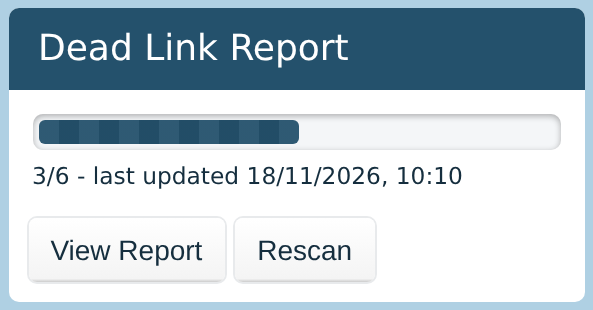
Websites move and close their pages, so links that worked when you added them can stop working. This report checks the links on your published pages that start with http:// or https://.
The figures under the bar are the links that don't work and the links it checked: 3/6 means 3 of 6 links are broken.
Rescan checks every link again. View Report lists the broken ones.
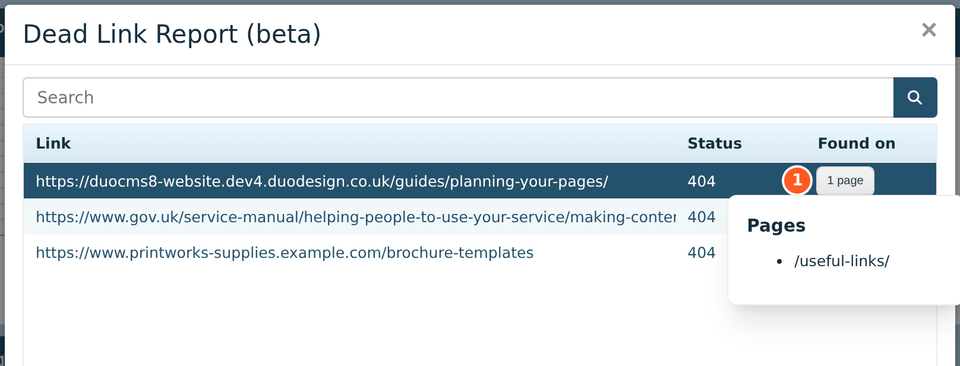
Each row shows the link, and the answer the other website gave. 404 means the page wasn't found. Click the number to see what it means.
Click the button under Found on (1) to list the pages with that link. Click a page to open it in the editor, with the link's words highlighted, then change the link or take it out. See Links.
Links to your own pages that start with just a slash, such as /contact/, aren't checked. The editor adds links to your own pages this way.
What's new
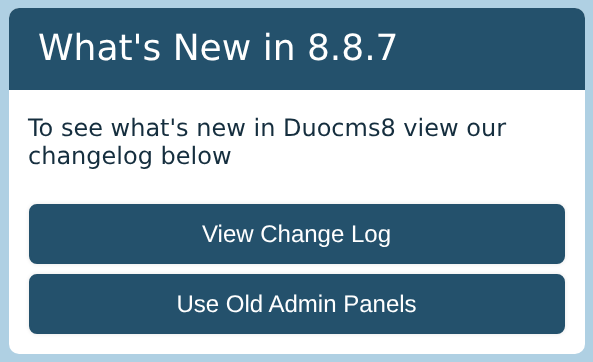
The heading shows which version of the CMS your website is on. View Change Log lists what changed in each version.
Some websites also have Use Old Admin Panels, which switches back to the previous design of the admin.
Who's signing in
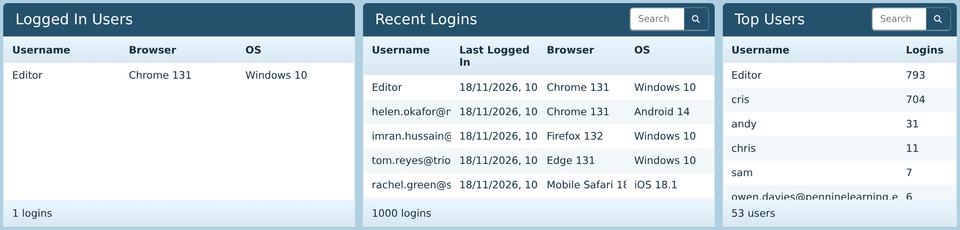
Logged In Users lists who is signed in right now, with their web browser and the kind of computer or phone they're using. That helps when someone reports a problem that only happens in one browser.
Recent Logins lists the latest sign-ins, newest first. Type in the search box to find someone.
Top Users lists who signs in most.
Double-click a person in Recent Logins or Top Users to open their details in Users.