 CMSDocumentation

Website administration
Email Settings
Email Settings is where messages from your website's forms go, the limits that keep out spam, the thank-you email people get when they fill in a form, and the service that sends your website's emails.
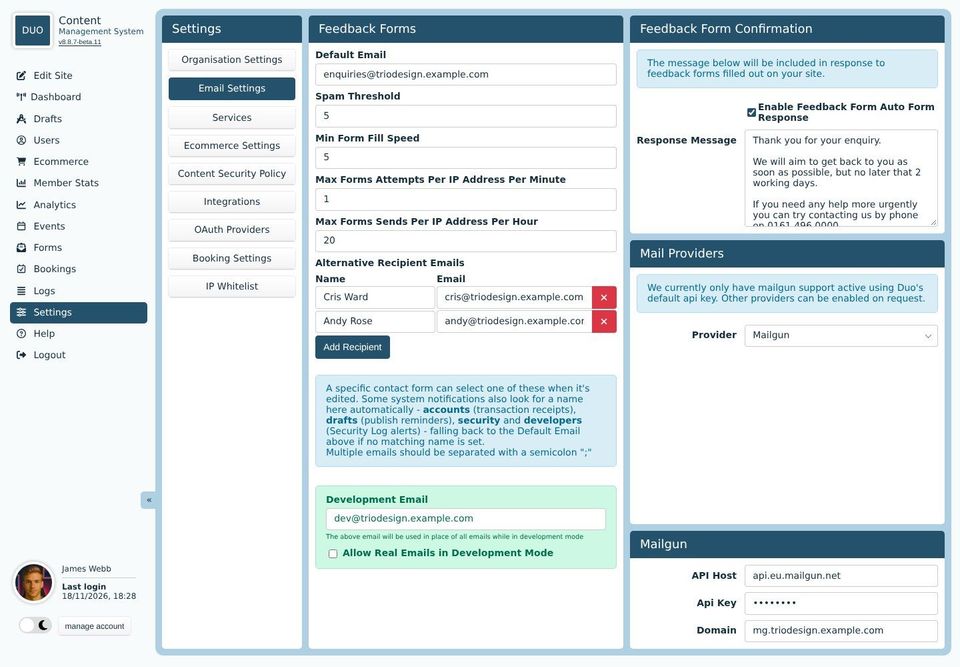
Feedback Forms
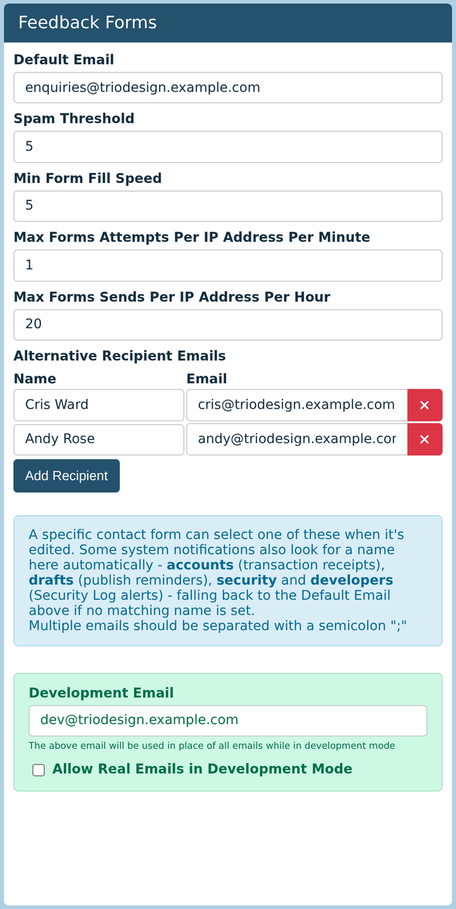
Default Email: where messages from your website's forms are sent. Separate several addresses with a semicolon (;).
Spam Threshold: messages that score more than this are turned away. See Forms.
Min Form Fill Speed: the fewest seconds a person could fill in a form in. Faster than this looks like a robot.
The two Max Forms boxes: how many forms one IP address can send in a minute and in an hour.
Alternative Recipient Emails: other people a form can send to. When someone adds a form to a page, they can choose one of these names as its Recipient.
Some names in Alternative Recipient Emails have a special job. If they're there, the website uses them:
accounts gets a copy of each shop receipt.
drafts gets reminders about drafts waiting to be checked.
security and developers get warnings from the rules under Logs, Actions.
Anything without a matching name goes to the Default Email.
The green Development Email box only appears while your website is being built. Emails go there rather than to real people until Allow Real Emails in Development Mode is ticked.
Feedback Form Confirmation
Tick Enable Feedback Form Auto Form Response to send a thank-you email to everyone who fills in a form. Type what it should say in Response Message. It's a good place to say when you'll reply, and how to reach you if it's urgent.
The email has your logo and organisation details from Organisation Settings.
Mail Providers
Your website sends emails through a mail service, which helps them arrive rather than land in junk folders. The details are set up when your website is built, and you won't usually need to change them. The Mail Log shows what's been sent.