This chapter covers the everyday jobs of keeping a website in good shape: fixing mistakes people report, checking pages on a phone, and understanding the cookie banner your visitors see.
Fixing a mistake someone reports
The quickest way to fix a typo or a broken link is from the page itself.
Sign in, then go to the page on your website, the same way a visitor would.
Click the thin bar down the left edge to open the toolbar, then click Edit Page.
Fix the mistake and click Save.
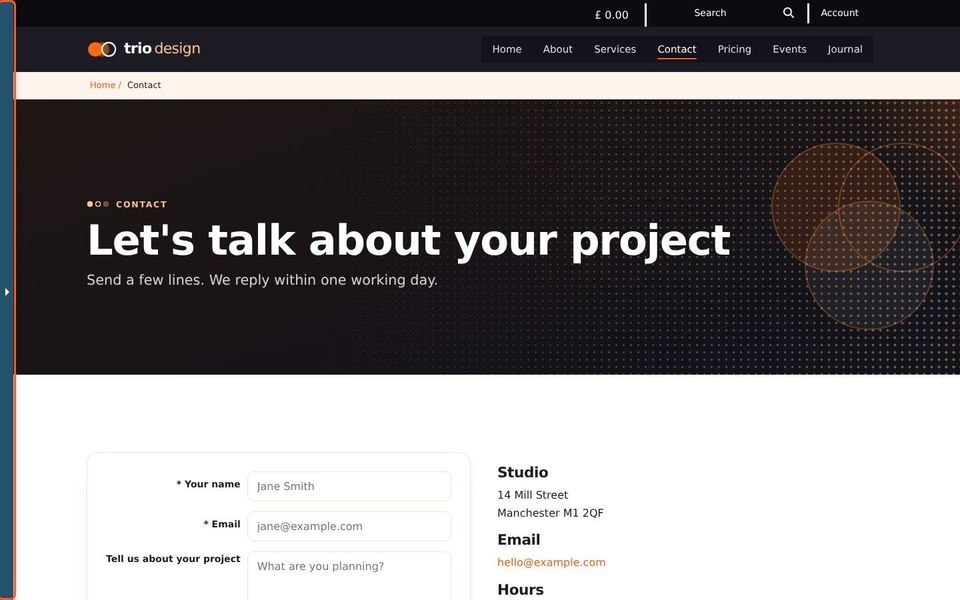
A typo: double-click the misspelt word to select it, then type it again.
A broken link: click the link. The link box shows where it goes. Open the page list and pick the right page, rather than typing the address. See Links.
Something on lots of pages, such as an old phone number: if it's in a snippet, change the snippet once. See Changing a snippet everywhere.
Clicking a broken link on your website shows a "Sorry" page. If the page it should go to was moved or renamed, open the link in the editor and pick the page again from the page list.
If you change something by mistake, use History to put back the earlier version.
Checking pages on a phone
Most visitors use a phone. After a big change, check the page at phone size:
Click Options in the main toolbar, then Mobile View.
Open the page for editing. It shows at phone width beside the editing panel, and you can still edit it.
Click Mobile View again to switch back.
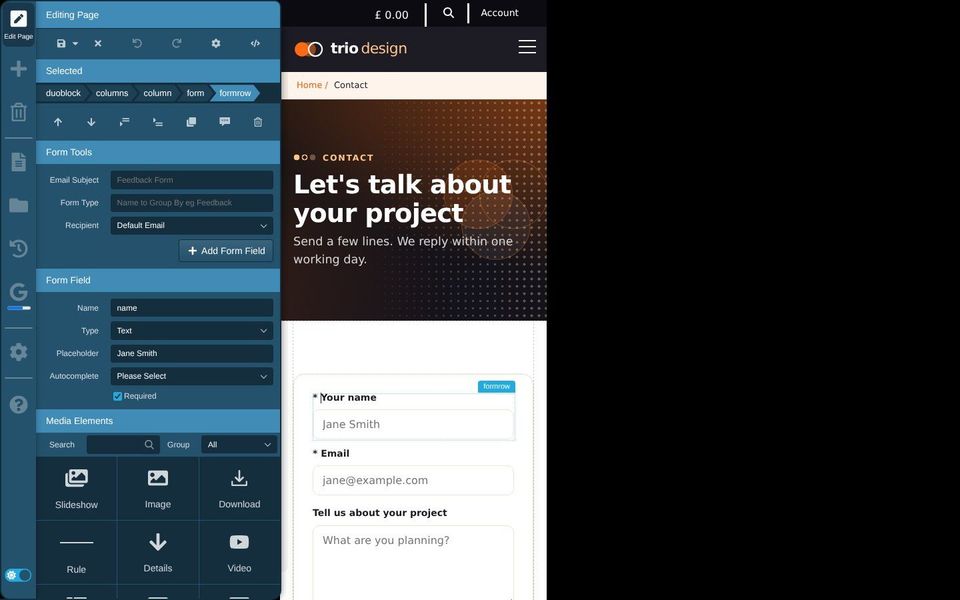
Look for pictures that are too big, columns that are hard to read, and tables that don't fit. Percentage widths usually fix pictures. See Editing images.
Checking search finds a page
After adding a page, search for it with your website's search box, using the words a visitor would use. If it doesn't come up, add those words to the page or to its keywords. See Your website's own search.
The cookie banner
New visitors see a cookie banner at the bottom of the page. It asks them to accept or decline cookies used by things like videos, maps and visitor statistics.
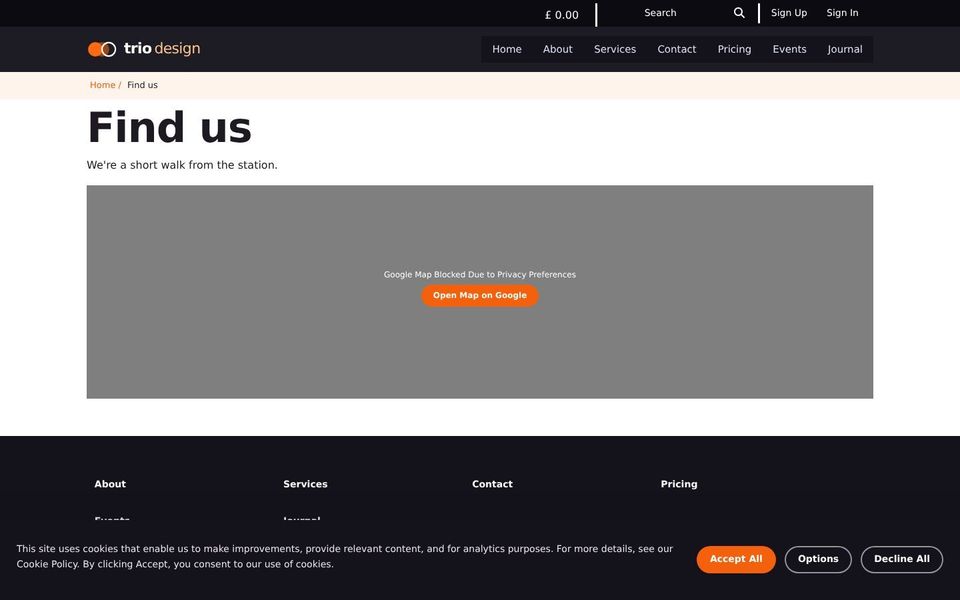
Until a visitor chooses, YouTube and Vimeo videos and Google Maps don't load. Visitors see a panel in their place with a button to open them on the other website instead. Once they accept, the page reloads and they show normally.
Visitors can click Options to choose which kinds of cookies to allow.
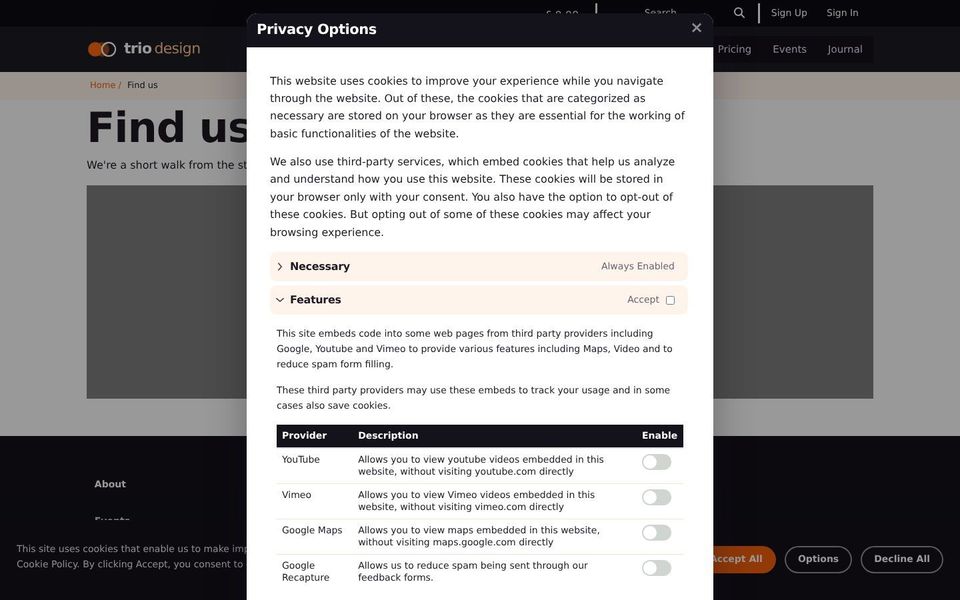
Necessary cookies keep the website working, such as remembering who's signed in. They're always on.
Features covers videos, maps and the spam protection on forms, each with its own switch.
Analytics covers visitor statistics.
To see the banner again yourself, use the Update Cookies Consent link in your website's footer, if it has one. It clears your choice and shows the banner again.
The banner's wording and the list of services are set by your web designer, not in the editor. If you add something new to your website that uses cookies, such as a chat window or a booking service, ask them to add it to the list.