This chapter covers making pages that only some people can see, such as a members area, and controlling who can edit which pages. Both work through groups: each person's account belongs to one or more groups, such as Editors or Members.
Groups and accounts are managed in the admin area, usually by whoever looks after your website. This chapter covers the parts you use from the editor.
Who can see and edit a page
Go to the page and click Pages in the main toolbar.
Click the Security tab. If you can't see it, your account isn't allowed to change security.
Untick Inherit Permissions, at the bottom of the list.
Tick Read for the groups who may see the page, and Write for the groups who may edit it.
Click Save.
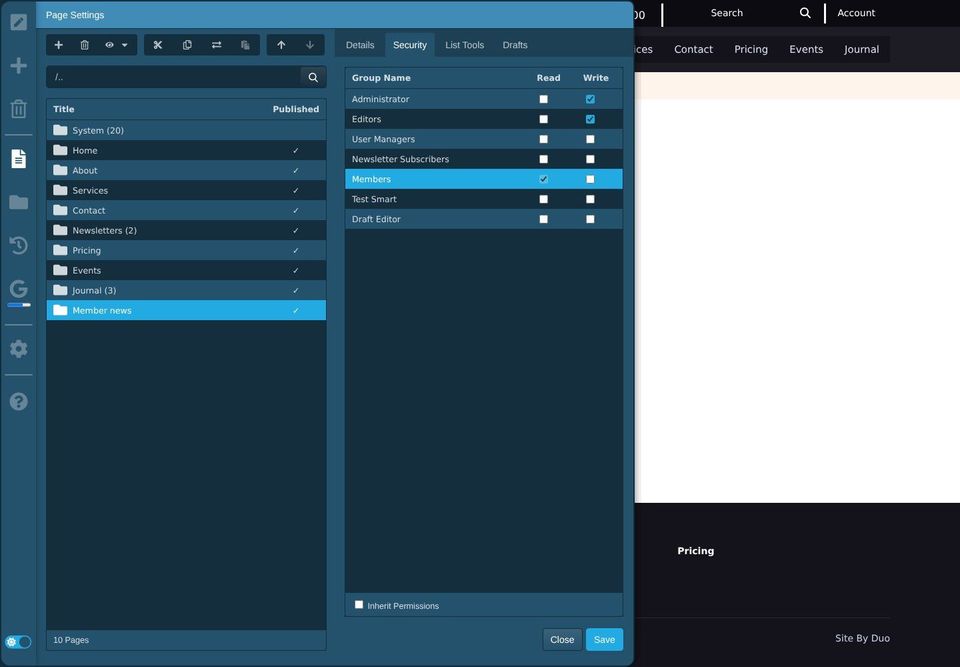
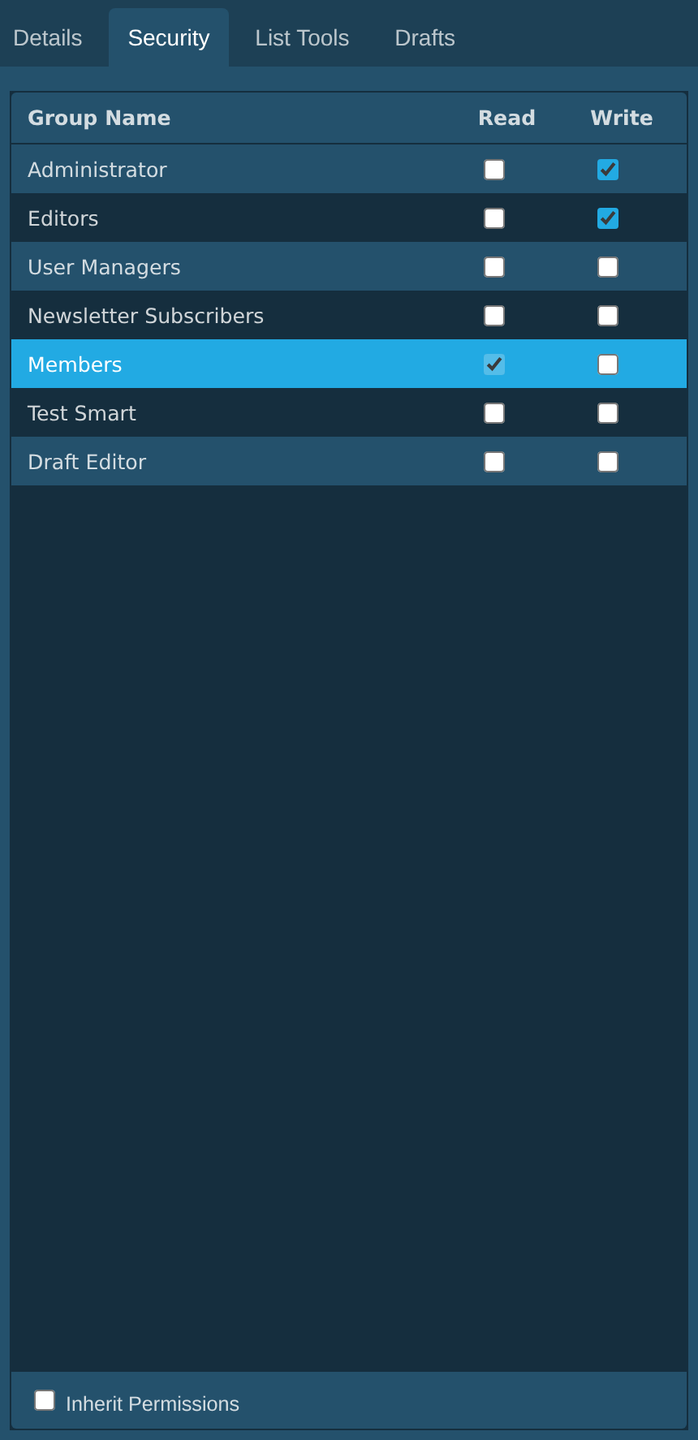
Inherit Permissions means the page follows the page it sits under. Most pages are left like this.
Pages inside this one follow its settings, unless they have their own.
When someone who isn't allowed opens the page, they see a sign-in page at the same address instead. Once they sign in with an account in the right group, they see the page.
Keep Write ticked for your own group, and for Administrator. Otherwise you may lock yourself out of editing the page.
Pages that only members can see are left out of your website's search for everyone else. See Your website's own search.
Members-only documents
Files can have security too, so a document can only be downloaded by signed-in members. In Files, right-click the file, choose Get Info, and set the groups on the Security tab, in the same way as for pages. See The file library.
A folder with a padlock on it in the File Manager has security set.
Showing part of a page to some people
You can also show one part of a page only to certain visitors, such as a welcome line for members, while everyone sees the rest.
Open the page for editing and click in the part to hide, such as a paragraph.
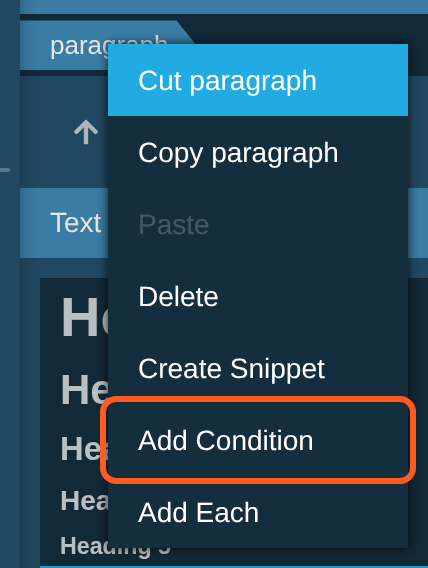
Right-click its name in the Selected bar and choose Add Condition.
In the Visibility panel, click Add Rule.
Choose what to check. For members, choose User Groups, Member Of and Members.
Save the page.
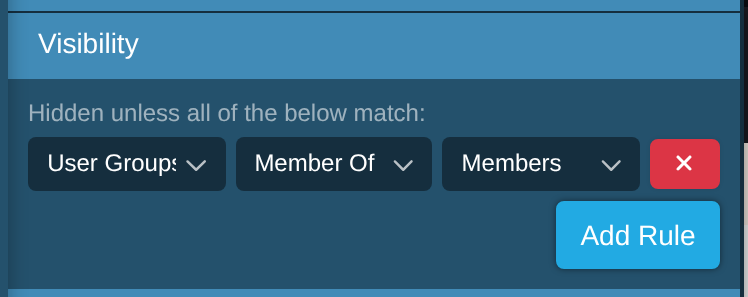
The part is hidden unless all the rules match. Add more rules to narrow it down.
Not Member Of does the opposite, for example a "Please sign in" line that only shows to people who aren't members.
A name in the Selected bar with an eye icon has a condition. Right-click it and choose Remove Condition to show it to everyone again.
While you edit, you see every part, whatever its conditions. To check what visitors see, save the page and look at it signed out, or ask whoever looks after your website to view it as a member.