 CMSDocumentation

Website administration
Groups and permissions
Groups decide what each person can do. A group has a list of permissions, such as editing pages or reading enquiries, and everyone in it gets them. Groups also decide who can see a private page.
Most websites start with a few groups, such as Administrator, Editors and Members. Put people in a group from their Groups tab, or several at once with Update Multiple.
The Groups list
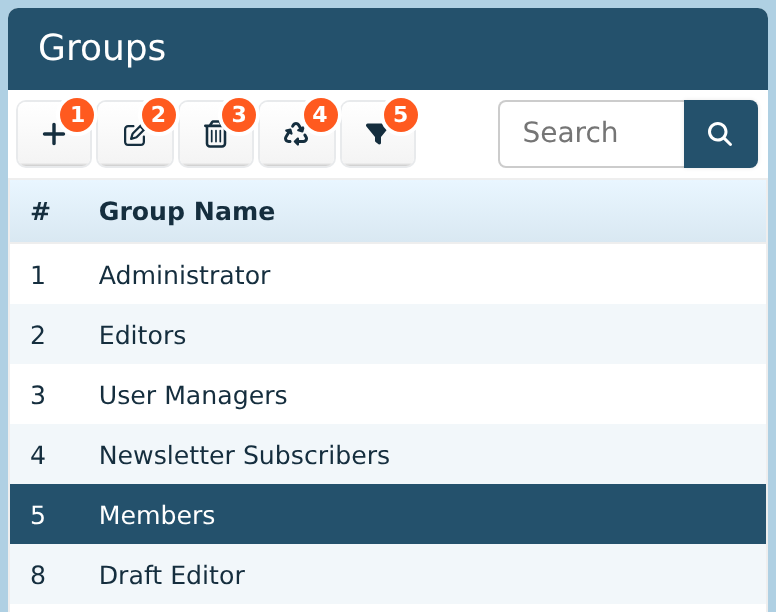
The Groups list is on the right of the Users screen. Click a group to choose it.
Add makes a new group.
Edit opens the chosen group. Double-clicking it does the same.
Delete removes the group, after you confirm. People in it lose what it gave them.
Deleted groups lists groups deleted recently, so you can bring them back.
Filter shows only the people in the chosen group. See below.
Who's in a group
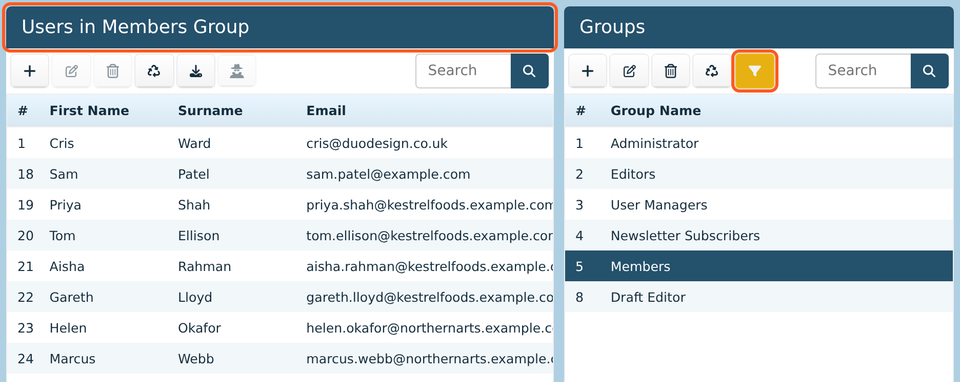
Choose a group and click Filter. The Users list then shows only that group's people, and its heading says which group. Click Filter again to see everyone.
While the list is filtered, Download saves just those people.
A group's permissions
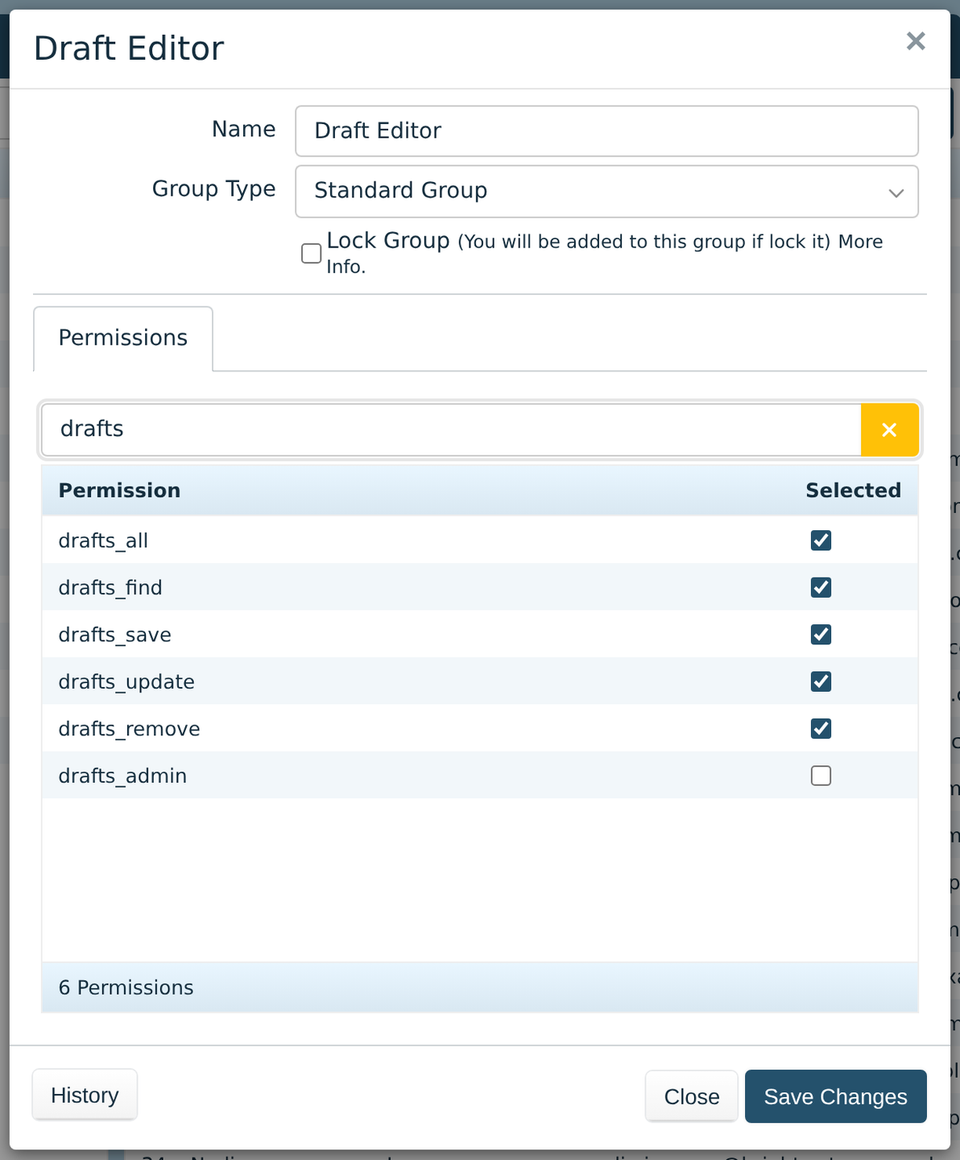
A group's window has its Name, its Group Type and a Lock Group box, then its permissions.
Tick the permissions the group should have, then click Save Changes. There are a lot, so type in the search box to find the ones you want.
Each permission's name says which part of the website it's for, then what it allows. Here, the Draft Editor group can write drafts and ask for them to be published, but it doesn't have drafts_admin, so it can't approve them. See Drafts.
The second half of a name usually means:
_all: see the list, such as all pages or all users._find: open one._save: add new ones._update: change them._remove: delete them.
History lists every change made to the group, and who made it.
Take care with groups that give a lot, such as Administrator. Anyone in them can change other people's permissions. If you're not sure what a permission does, ask whoever looks after your website before you tick it.
Groups and private pages
A page can be set so that only some groups can see or edit it. That's done on the page itself, in the editor. See Members and permissions in the editor guide.
Smart groups
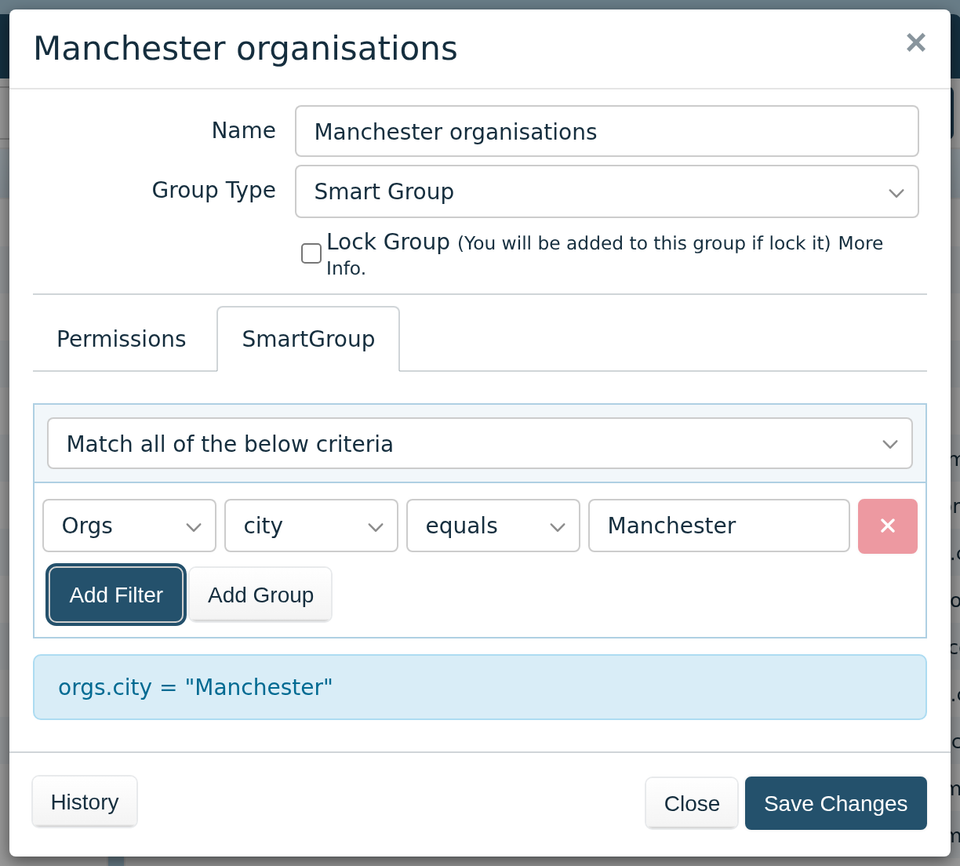
You don't add people to a smart group. It works out who's in it from a rule, and keeps itself up to date as people join, leave or change their details.
Make a group, and set Group Type to Smart Group.
Click the SmartGroup tab.
Choose whether to look at people (Users) or their organisations (Orgs), then a detail, a comparison and a value. This one is everyone whose organisation is in Manchester.
Click Save Changes.
Add Filter adds another rule. The list at the top says whether people must match all the rules or any of them. Add Group adds a set of rules inside the first, for when you need both, such as "in Manchester, and either a school or a charity". The box under the rules shows them written out, to check.
The comparison like matches part of a value: %kestrelfoods% matches any email address with kestrelfoods in it.
Only some websites have smart groups.
Locking a group
Normally, anyone who can manage users can add people to any group. Ticking Lock Group means only people already in the group can add others to it. Use it for a group that protects private pages, so other people who manage users can't add themselves, or anyone else, and get round that protection.
Ticking Lock Group puts you in the group, so you can still manage it. In someone's Groups tab, a locked group you're not in can't be ticked.