 CMSDocumentation

Website administration
Ecommerce Settings
Ecommerce Settings controls how your shop charges people: VAT, currencies, stock, what the checkout asks for, and which company takes the card payments.
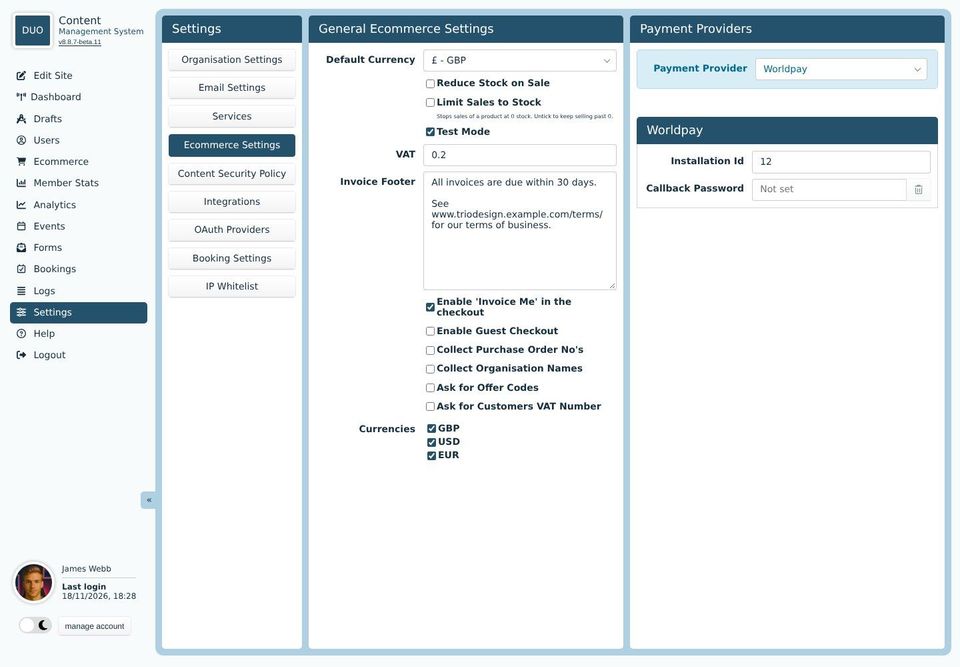
General Ecommerce Settings
Default Currency: the currency prices are shown in to start with.
Reduce Stock on Sale: each completed order takes what was bought off the products' Stock figures.
Limit Sales to Stock: stops people buying more of a product than its stock figure, so it can't be bought once it reaches 0. Untick it to keep selling past 0.
Test Mode: while it's ticked, payments go to the payment provider's test system and no real money changes hands. Untick it when your shop opens.
VAT: the VAT rate, as a decimal. 0.2 is 20%.
Invoice Footer: words printed at the bottom of every invoice, such as your payment terms.
Enable 'Invoice Me' in the checkout: lets customers ask for an invoice and pay later, rather than paying by card. Their orders stay unpaid until you confirm them (see Transactions).
Enable Guest Checkout: lets people buy without making an account.
Collect Purchase Order No's, Collect Organisation Names and Ask for Customers VAT Number add those boxes to the checkout.
Ask for Offer Codes adds a box for discount codes (see Offers).
Currencies: the currencies customers can choose between.
Both stock tickboxes start unticked. Products with an empty Stock box aren't counted either way. Before you tick them, check each product's Stock figure is right, or a product with an old figure of 0 will stop selling.
Payment Providers
Choose the company that takes card payments for you, such as Stripe, Worldpay or PayPal, then fill in the details they give you when you open an account with them. Secret keys show as dots once they're saved.
Your payment provider's details are best set up by whoever built your website, and checked with a test payment before Test Mode is turned off.